Guide · Getting started
Campaigns and who they talk to
A campaign is one specific effort with one specific set of voters — a GOTV push, a vote-by-mail chase, a Spanish-language door program. This page covers making one, and choosing exactly who it works.
One file, many campaigns
Your voter file is everyone you hold. A campaign is a slice of them. You will probably run several off the same file, each aimed at different people, and that is the point.
The thing people worry about, answered up front: narrowing a campaign never deletes anybody. Your voter file is untouched. You are choosing who this campaign talks to — another campaign can work a completely different group from the same file.
Making a campaign
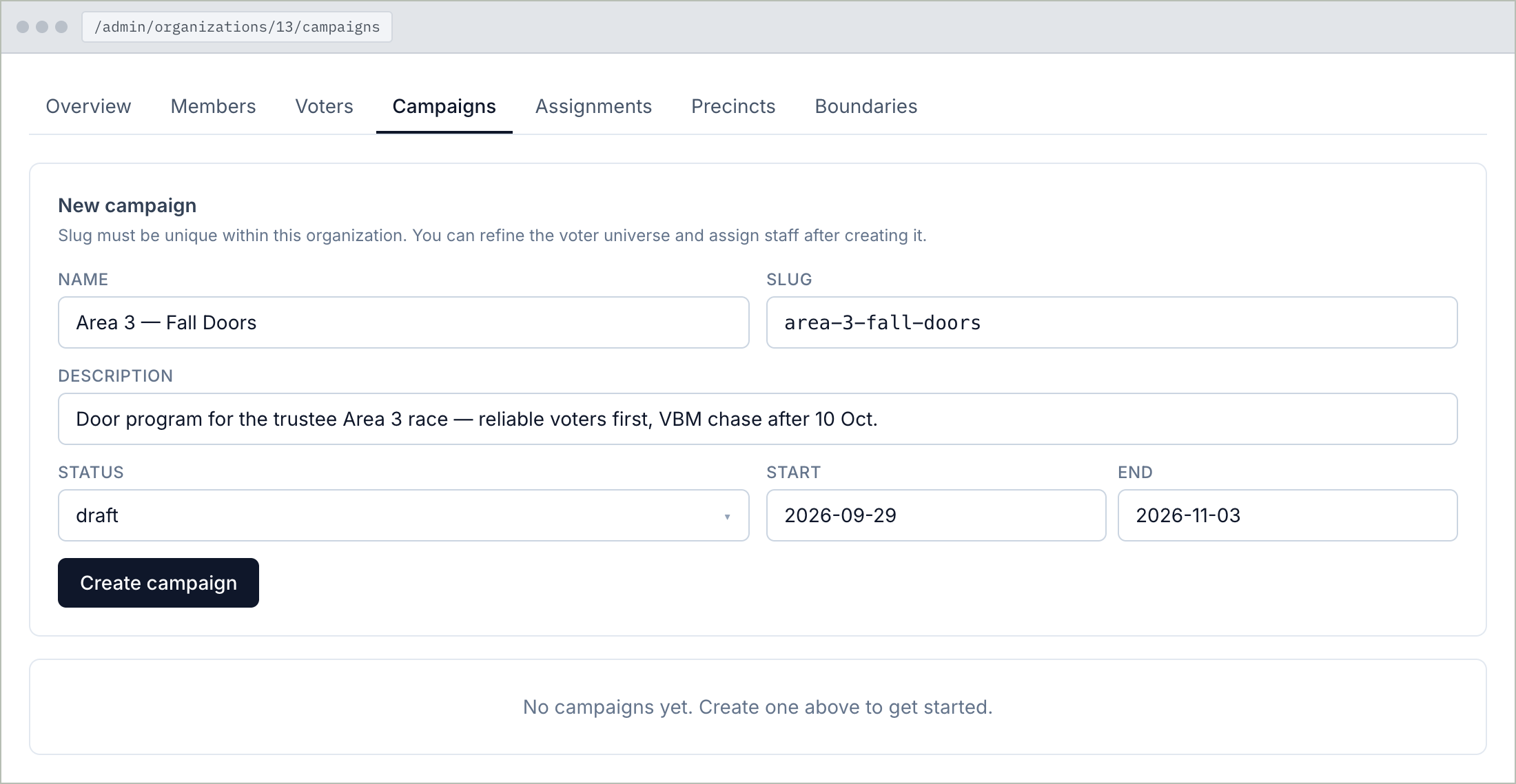
Four things matter and two do not.
- Name — something you would say out loud. "Area 3 — Fall Doors".
- Slug — the short version that appears in the web address. Lowercase, dashes instead of spaces, and unique inside your organization.
- Description — for your team, not for us.
- Status — this one does something real. See below.
The two that do not: start and end dates are there to describe the effort. Nothing switches on or off when they pass.
Draft or active?
Leave a campaign on draft while you are setting it up. A draft campaign works normally for you, but it stays out of your organization's cross-campaign reporting — the door totals and the canvass log count active campaigns. Switch it to active when the team is going to start working it, and it joins those numbers.
The universe: who this campaign talks to
We call a campaign's set of voters its universe. A fancy word for a simple thing: the list of people this campaign talks to.
A new campaign targets everyone in your organization. That is a perfectly good answer — if it is yours, you are done.
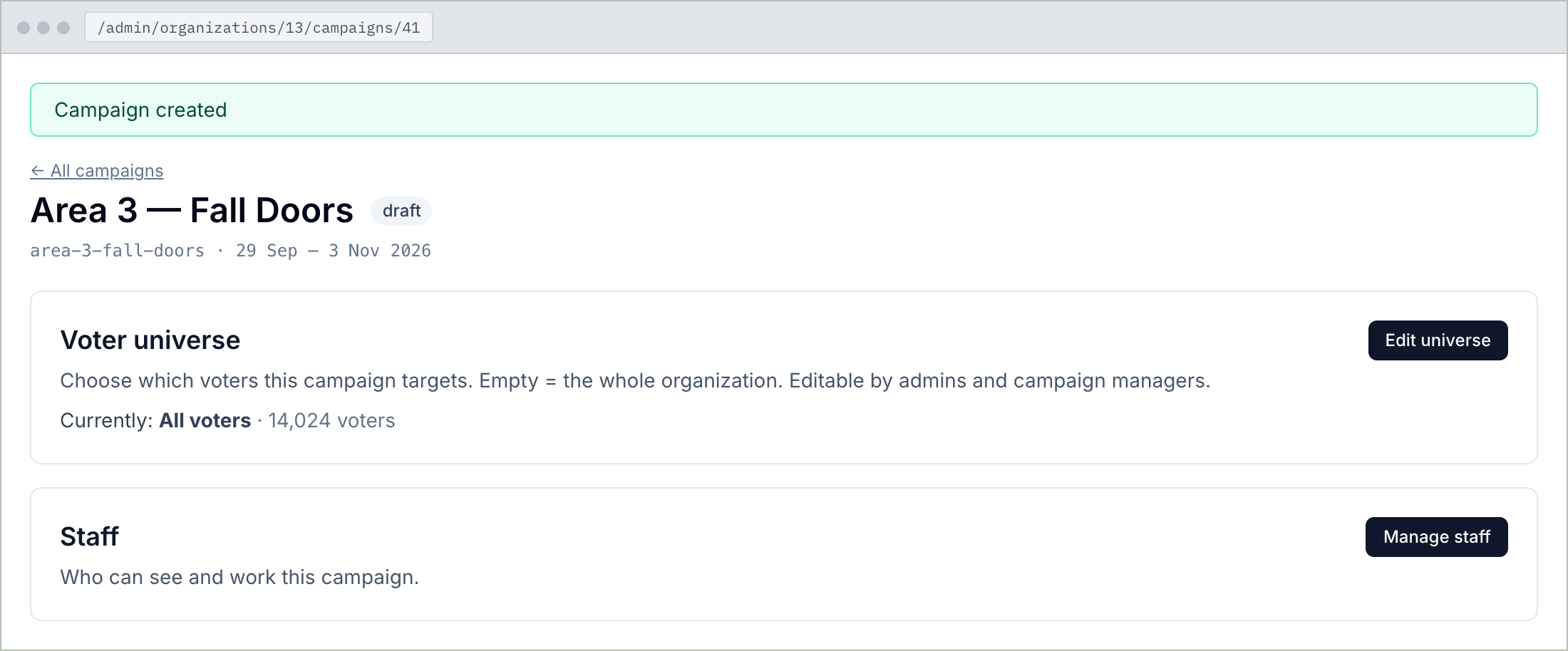
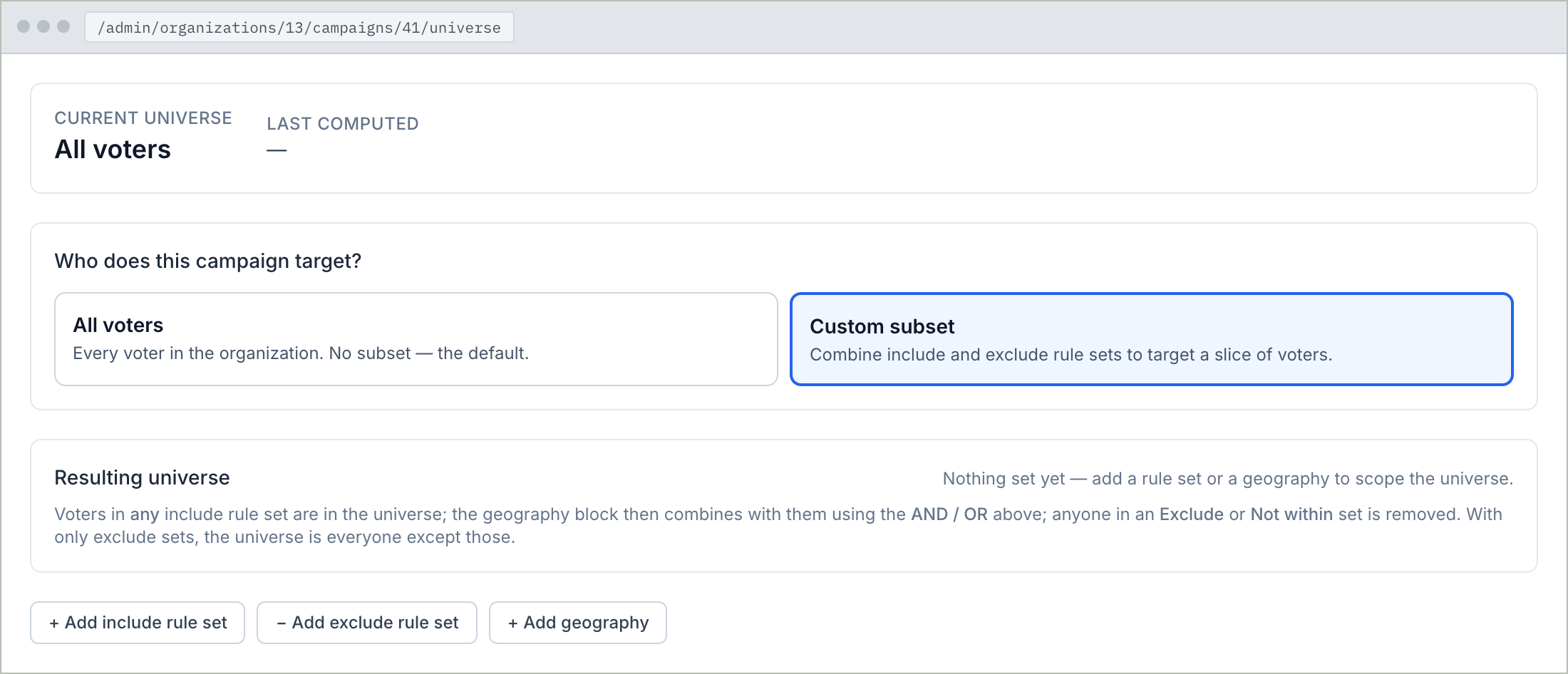
To narrow it, open Edit universe and choose Custom subset. If the controls look familiar, they should: they are the same ones the import uses to decide which rows to load. Learn them once.
Rule sets
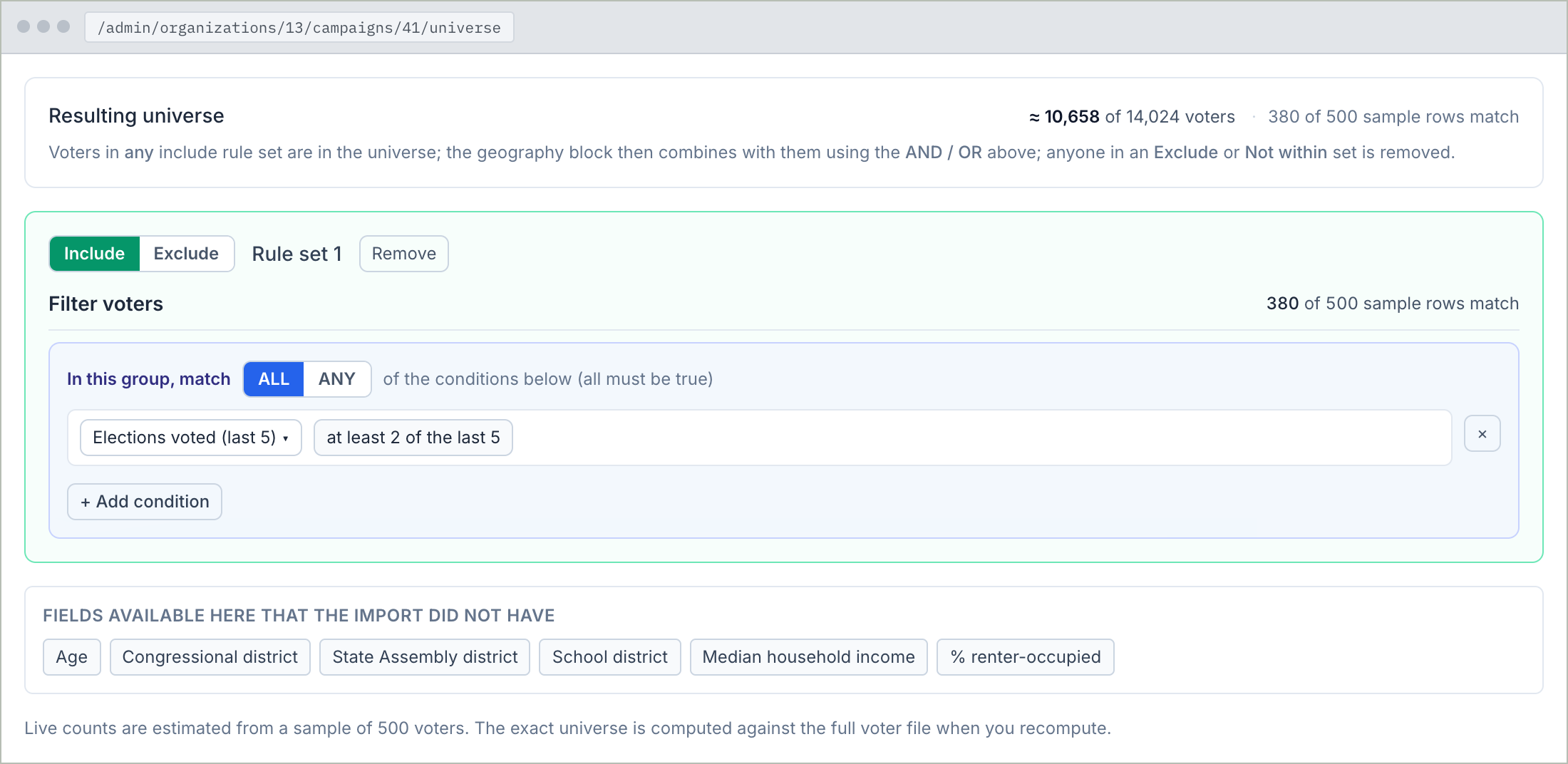
A rule set is one sentence about who you want — "voted in at least two of the last five elections", or "party is Democrat or No Party Preference". Each is either an include (anyone matching is in) or an exclude (anyone matching is out).
Above them, the app writes out what your combination actually means, and keeps a running count. Read that sentence before you save. It is the best check there is against targeting the wrong people.
Areas
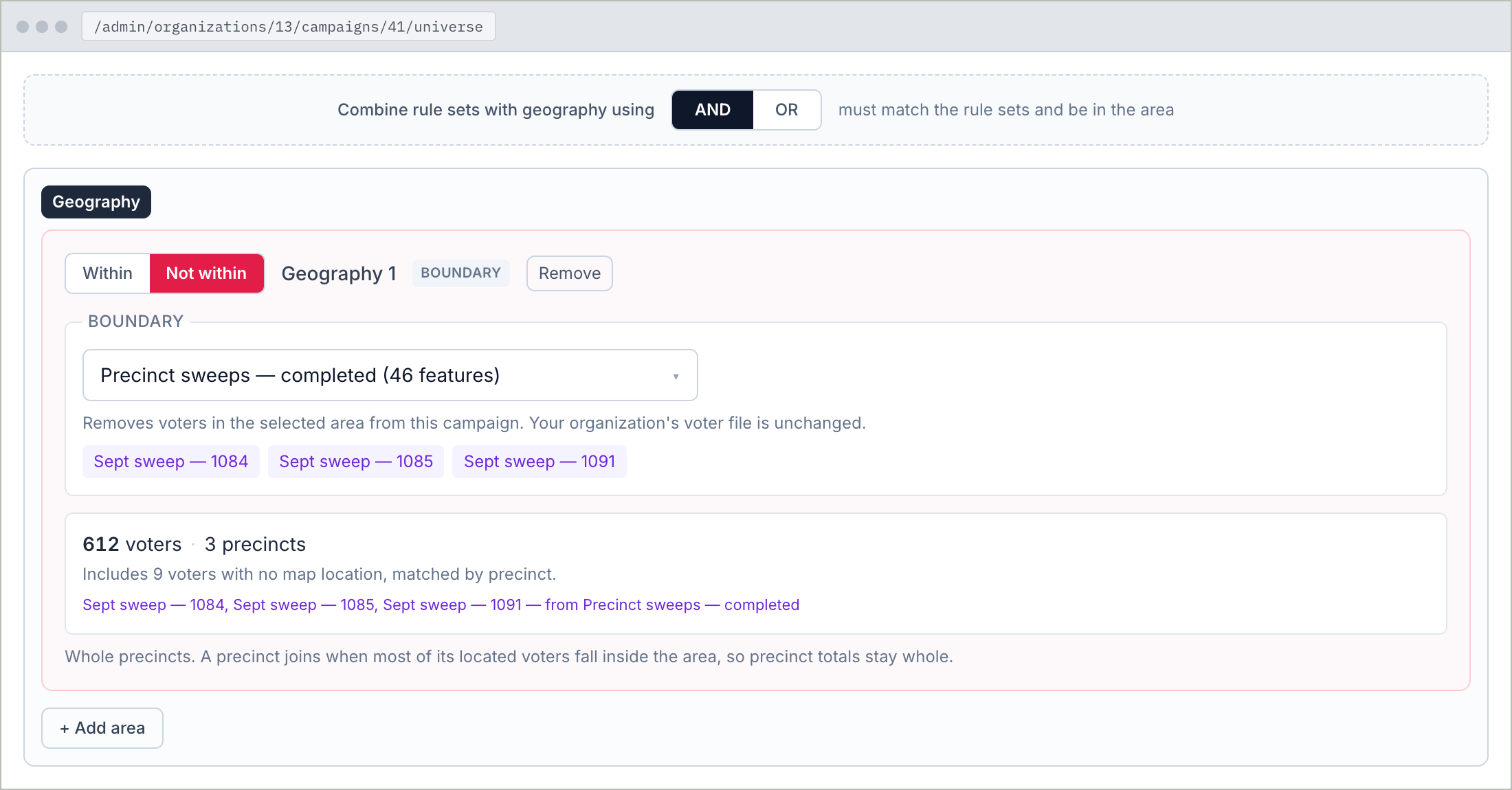
You can also target by map area. Each area is either Within — the voters inside it — or Not within, which takes those voters out. Use "not within" for the neighbourhood you have already finished, or the precincts another team is covering.
With both rules and an area, the app asks how they combine. AND means a voter must match your rules and be in the area — the usual one, "my kind of voter, in my turf". OR means either qualifies, which widens rather than narrows. It is spelled out in plain words underneath, so you never have to guess which you picked.
Areas resolve to whole precincts: a precinct joins when most of its located voters fall inside the area. That keeps precinct totals whole, and it means voters with no map position still come along with their precinct instead of quietly vanishing.
Estimates, then the real number
While you build, the count you see is measured from a sample of your voters — close, but not final. The app says so.
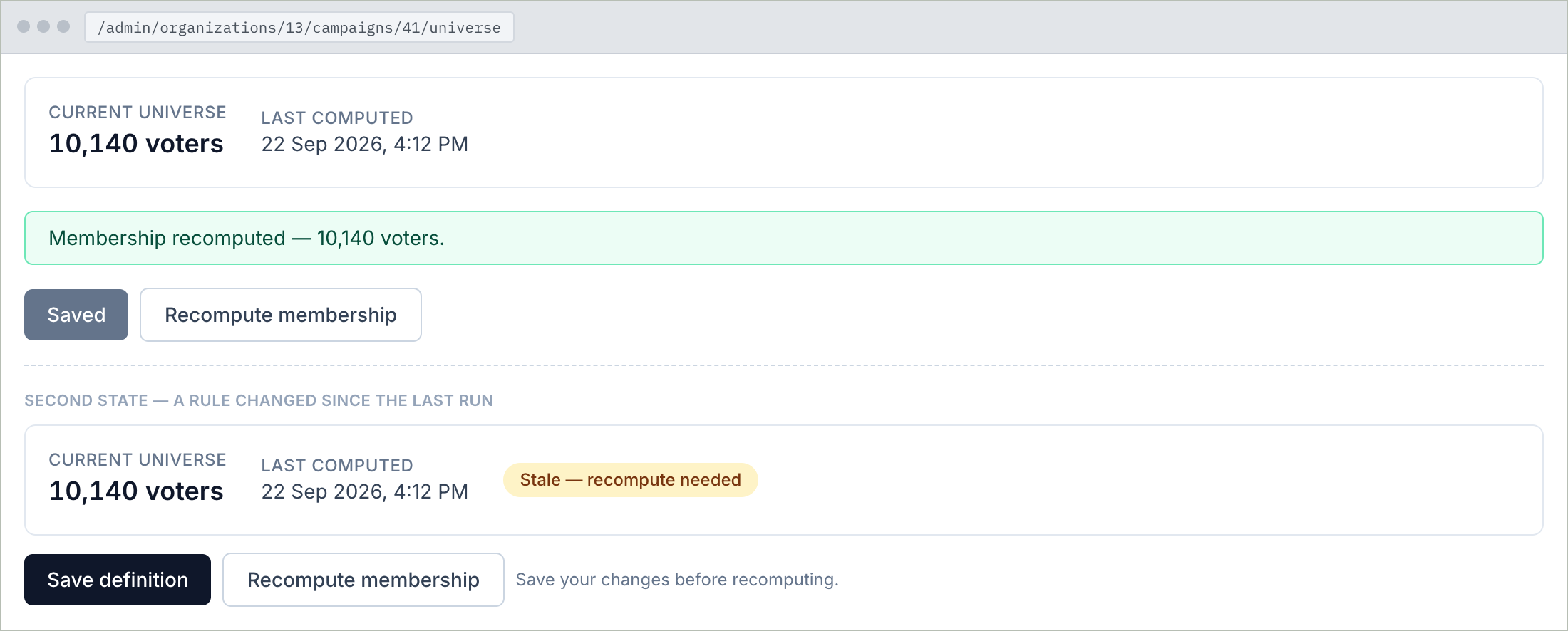
Two buttons finish the job, and the order matters. Save definition stores the rules. Recompute membership runs them against every voter you hold and actually builds the list. Save first, then recompute; the app will nudge you if you try it the other way round.
Recompute is the moment the number at the top becomes real. That is your campaign's actual size.
When it says "stale"
A stale flag means the list has not caught up with something. There are two somethings, and they are not handled the same way:
- You changed the rules. Press Recompute. This one is deliberately yours — the app will not rewrite a campaign's membership out from under you on the strength of a half-finished edit.
- The voter file changed — you imported new voters, or removed some. The app refreshes campaign universes itself after an import finishes. You do not need to do anything.
Things you can target that were not in your file
Some of what you can filter on here was worked out after your voters arrived, so you will not find these columns in the file you uploaded:
- Districts — which congressional, legislative, school and local districts each address falls in.
- Age — derived from date of birth, if your file carries one.
- Neighbourhood demographics — census estimates for the small area around a household. These describe areas, never individuals: "62% Hispanic" is a fact about a city block, not about the person at the door.
Ready? Make a campaign, or open the universe editor on one you already have.
Create a campaign Edit a universe← Previous guide: precincts · Next guide: turf, crews and shifts →