
Guide · Running the field
Turf: cutting it, handing it out, fixing it later
Your voters are in, your precincts are drawn, your campaign has a universe. Now somebody has to walk it. This guide is the manager's side of that — the map, the crews, the day sheet — and it ends on what a canvasser sees on their phone.
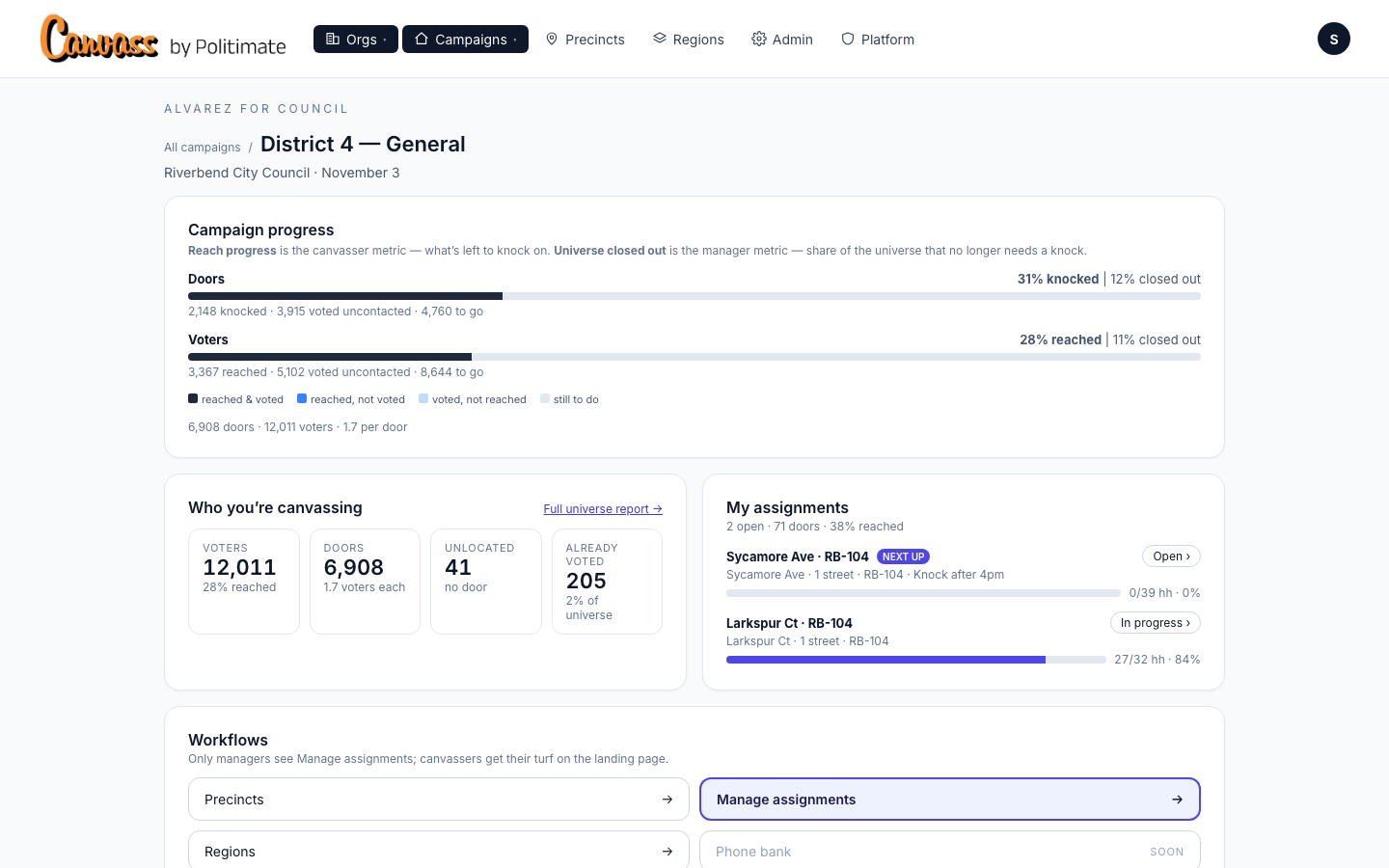
1. Where it all lives
Manage assignments lands you on three tabs. Assignments is every turf that is out in the field and who has it. Cut turf is the map, with your precincts ready to carve up. Teams is where crews live: set one up once and reuse it all season.
2. Cut a turf
Start in Scope. Type a city, a ZIP, a precinct number or a street address into the search box — an address flies the map to that door — or click Region and pick from the list. The count underneath says how many precincts you are looking at.
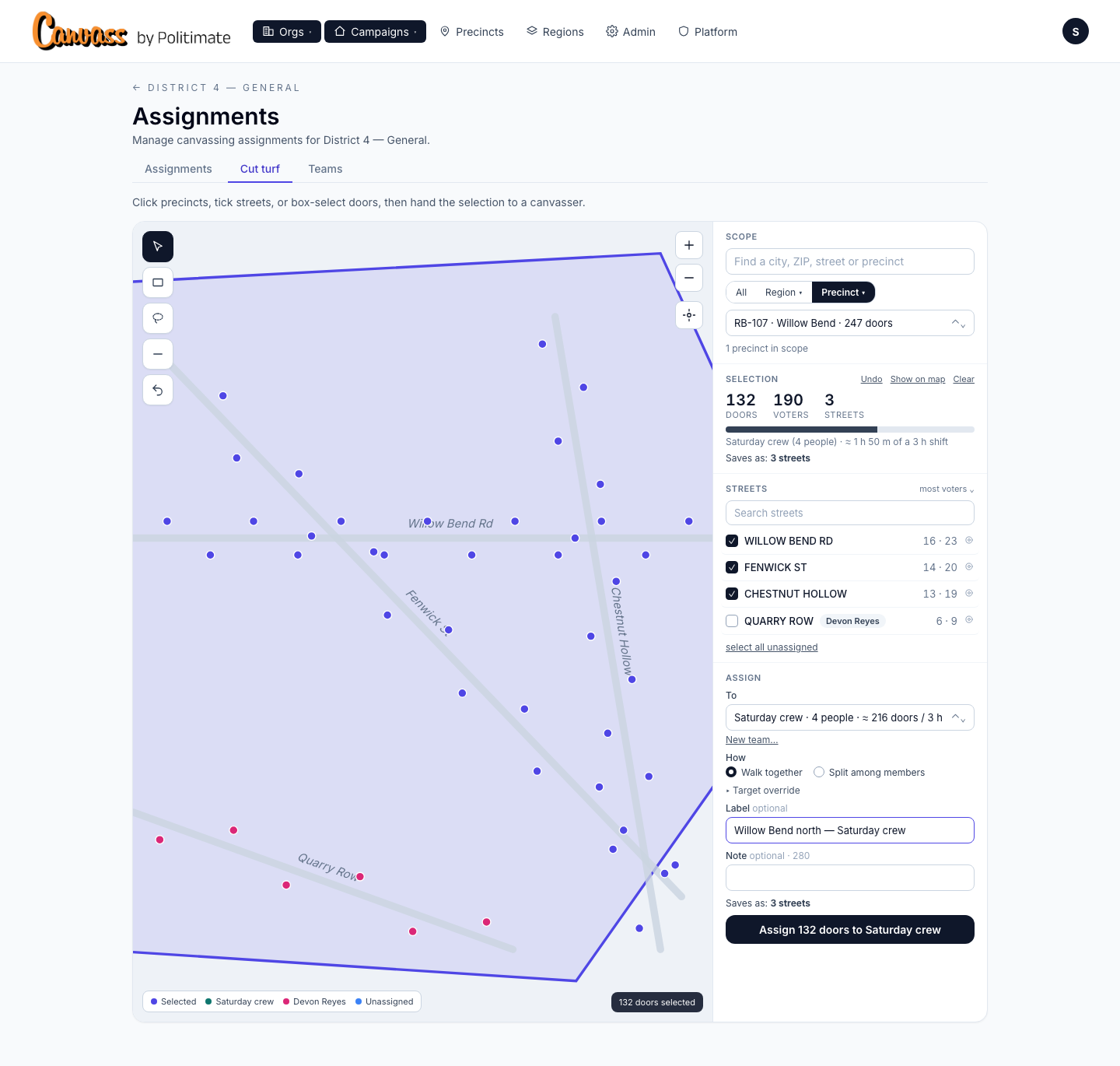
On the map, click a precinct to take the whole thing; click again to let it go. Zoom in and the Streets list fills in: tick a street's box to take every door on it, hover a row to see those doors light up. For less than a street, the box tool drags a rectangle over the doors you want, the lasso draws a freehand shape, minus takes doors back out, and undo reverses your last step.
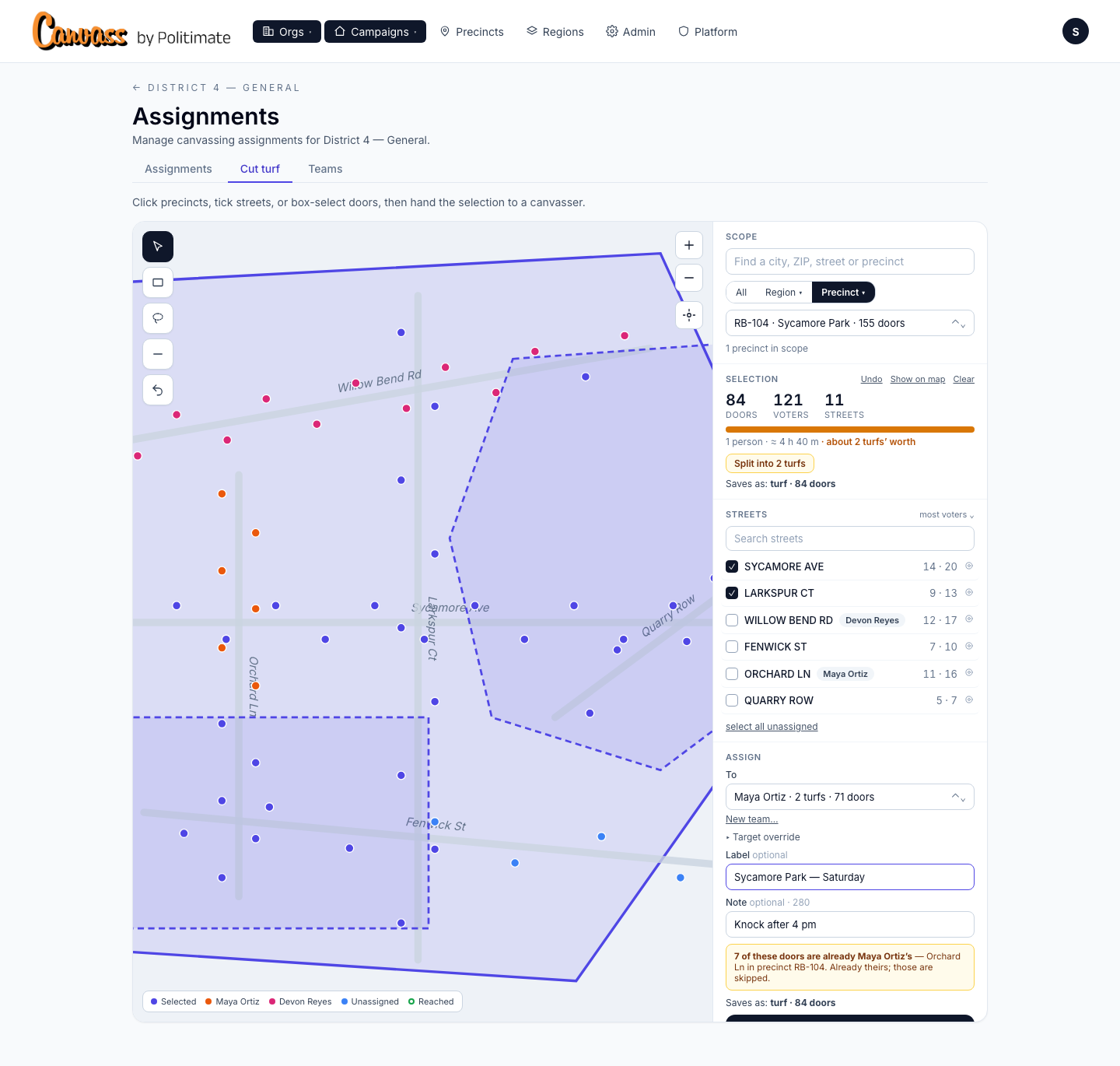
Scroll down to Assign. Click To and pick the canvasser. The list is the campaign's members; if someone is missing, they are not on the campaign yet. Type a label they will recognise, add a note if you like, and click Assign. They get an email, and the turf shows up on their phone.
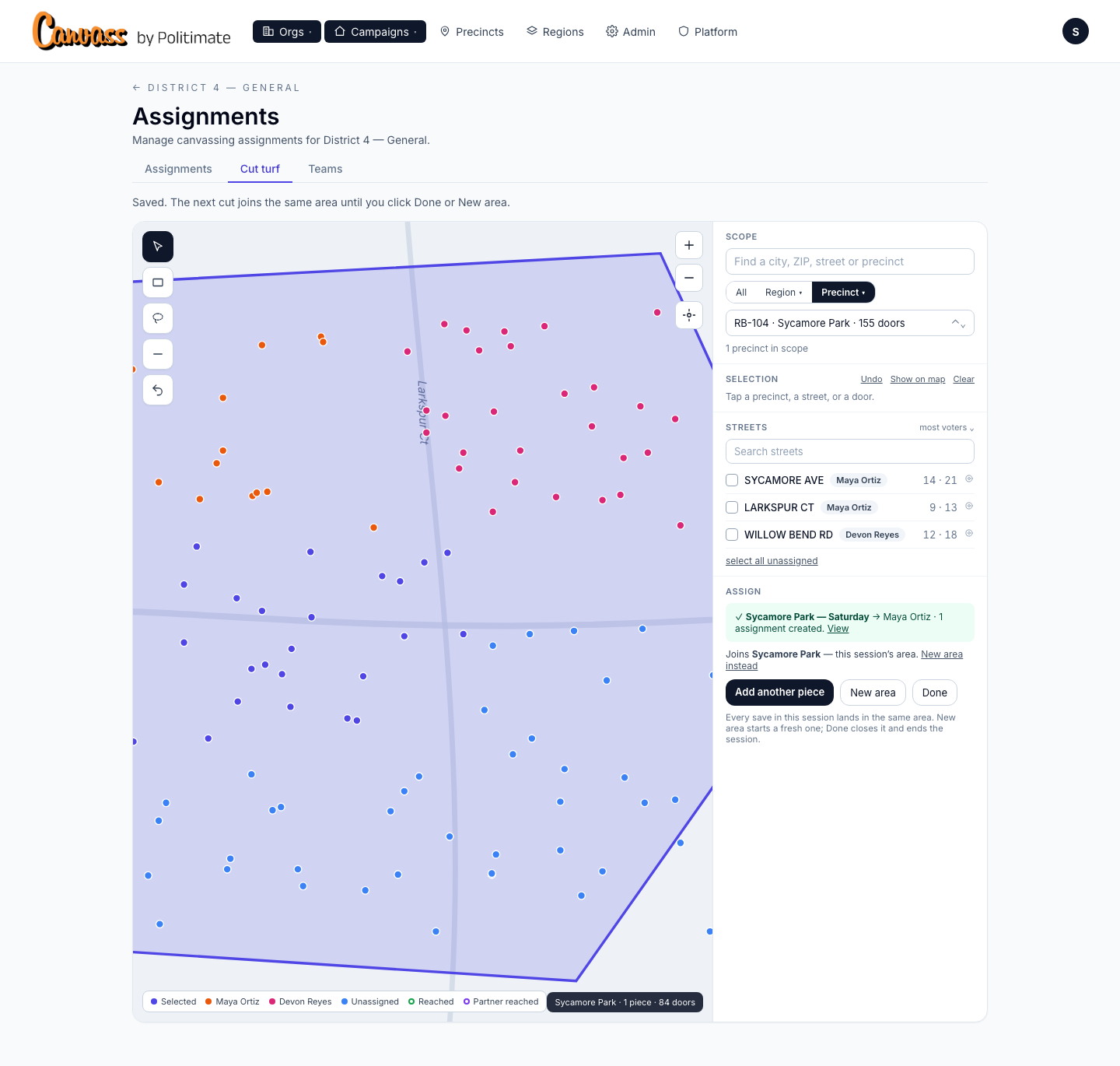
The line under the green tick: areas
Read what appears after you assign. The turf joined this session's area. An area is the neighbourhood you are cutting up tonight, and every save in this session lands in it. Add another piece keeps cutting into the same area. New area starts a fresh one. Done closes the area and ends the session. That is the whole rule, and it is what makes turf fixable later (section 7).
3. Stand up a crew
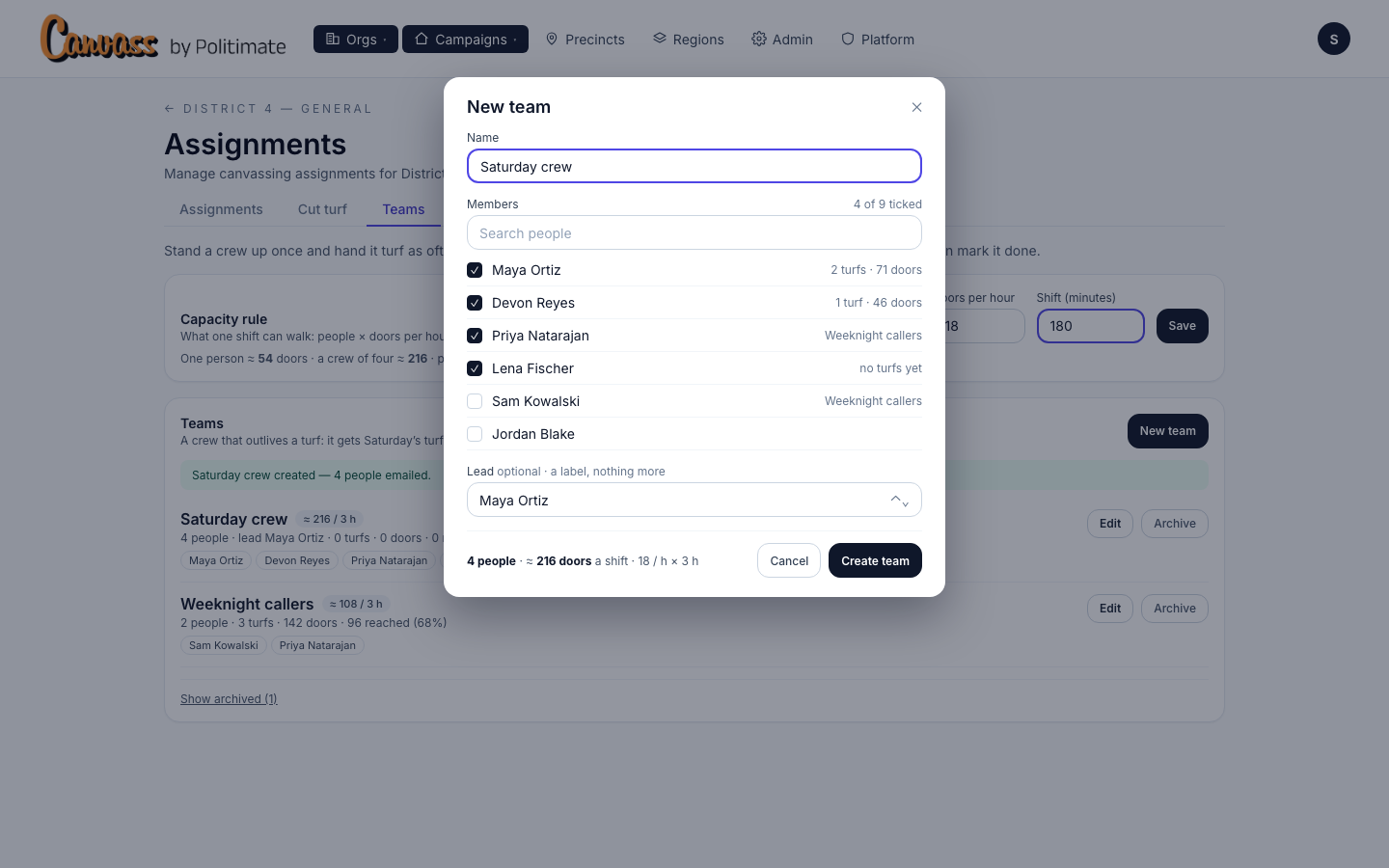
Click the Teams tab. The Capacity rule at the top sizes every turf in the campaign: doors an hour, times the shift length. Eighteen doors an hour on a three-hour shift means one person walks about fifty-four. Change either number and click Save; every gauge and pill updates with it.
Click New team, type a name, tick the people on it (only the campaign's members are listed), pick a lead if you want one — it is a label, nothing more — and click Create team. Everyone on it gets one email saying they have joined. The card tracks the crew from there: turfs, doors, reached. When the crew is done, click Archive; any turf it still holds is flagged until you hand it to someone else, not lost.
4. Hand a team its turf
Back in Cut turf, tick the streets the same way. In Assign, click To: teams sit at the top of the list with what they already carry and how much a shift can take. Pick the crew and the gauge stretches to the crew's size. Then choose How. Walk together makes one turf that belongs to the whole team — everyone gets the email, sees it on their list with the team's name, and any of them can mark it done. Split among members does the carving for you.
5. Split a big selection
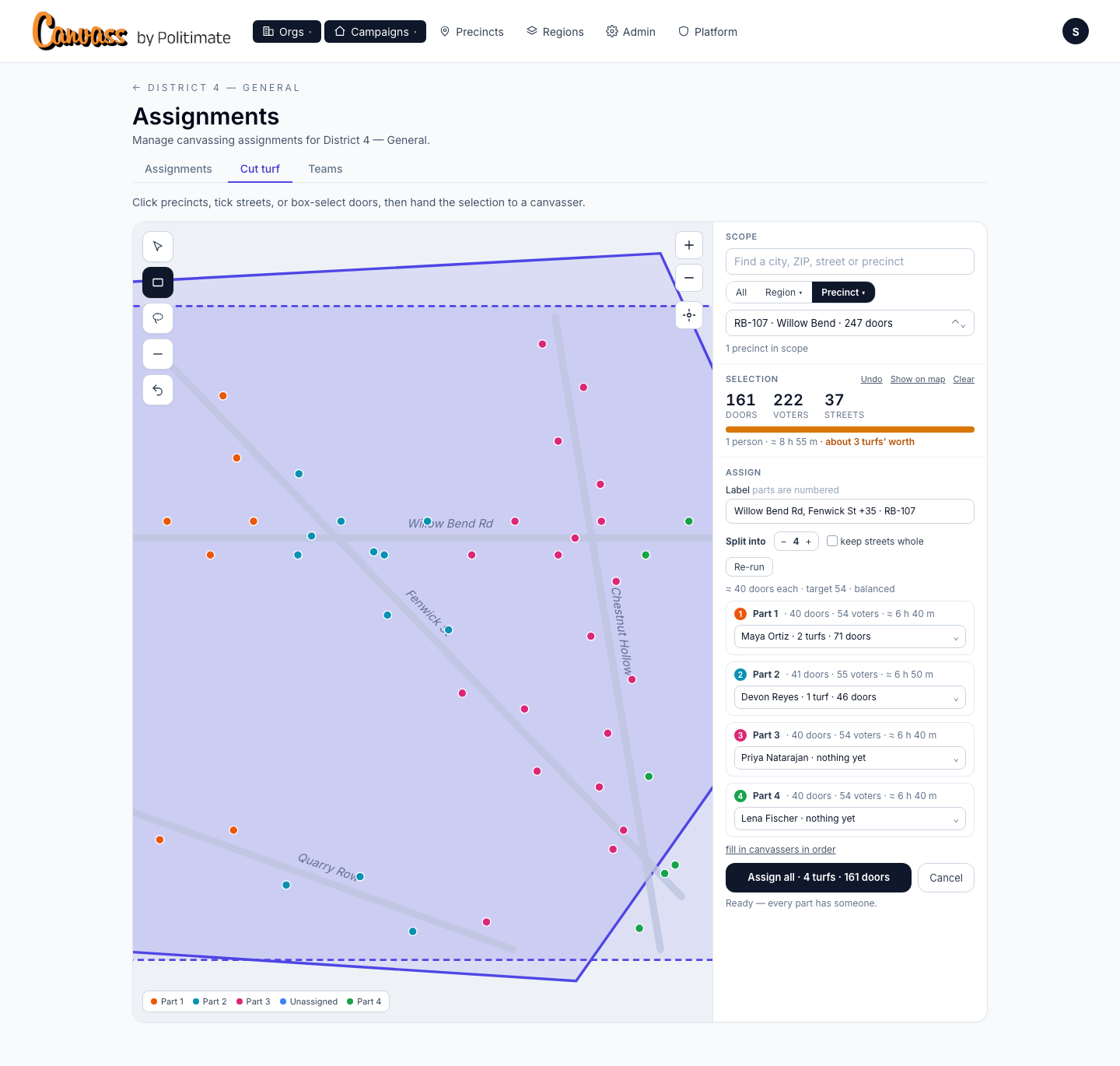
Say you have boxed a whole neighbourhood: three shifts' worth. The builder already worked out it is three turfs. Split cuts the selection into parts that stay in one piece and come out about the same size. Want four instead? Click plus, then Re-run. Click each part's box, pick who takes it, and click Assign all: three turfs, three emails, one area with three pieces.
6. Run the manage view
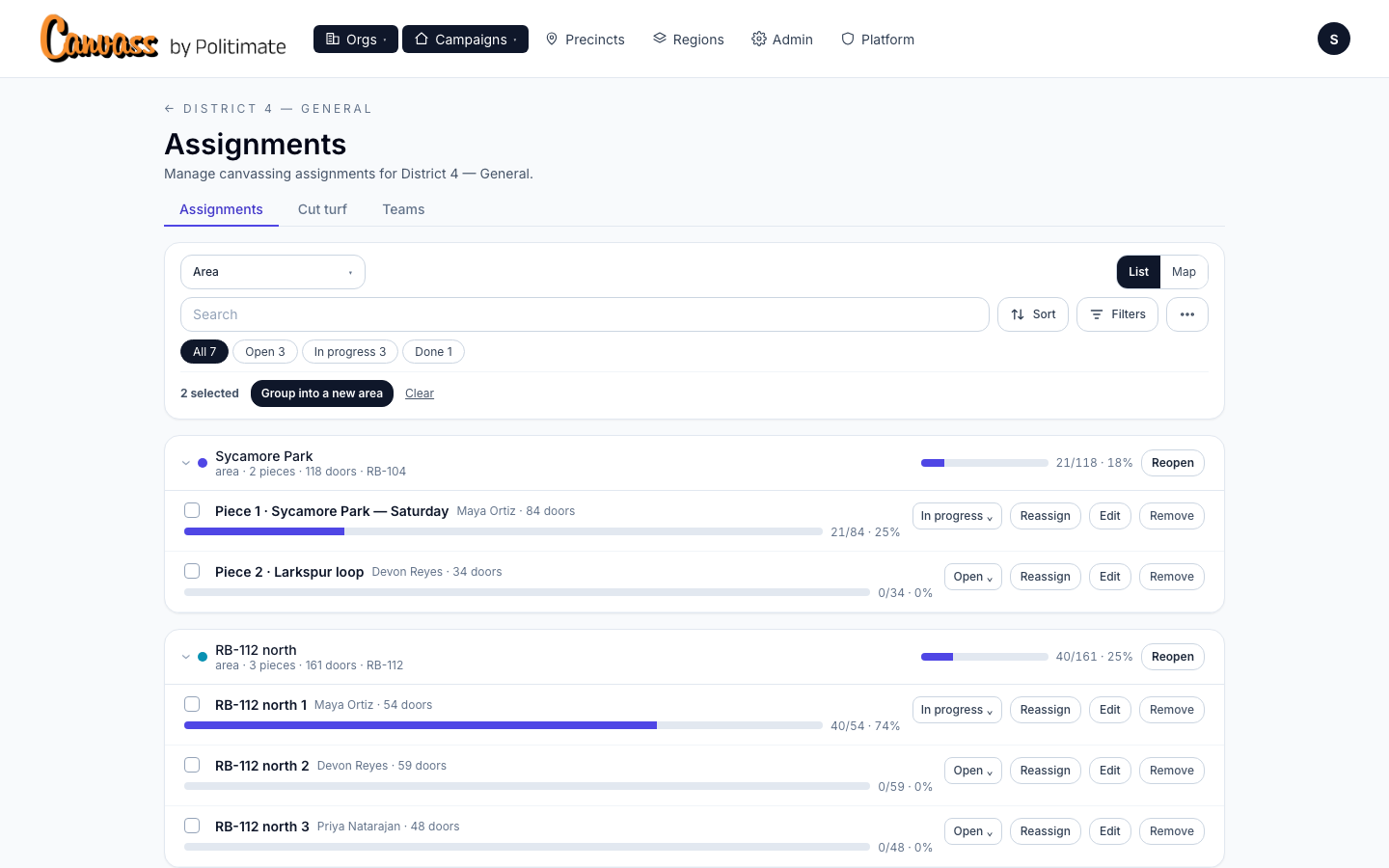
The Assignments tab is where you watch the field. One row of decisions at the top: Group by (canvasser, team, area, county, city, precinct, or unassigned), List or Map — the map uses the same colours and labels as the builder — and Filters. The line under the counts always says what is on; Clear takes it all off. The counts themselves are live filters: click Open to see what is still out. Open a team and you see each member's share of the doors reached.
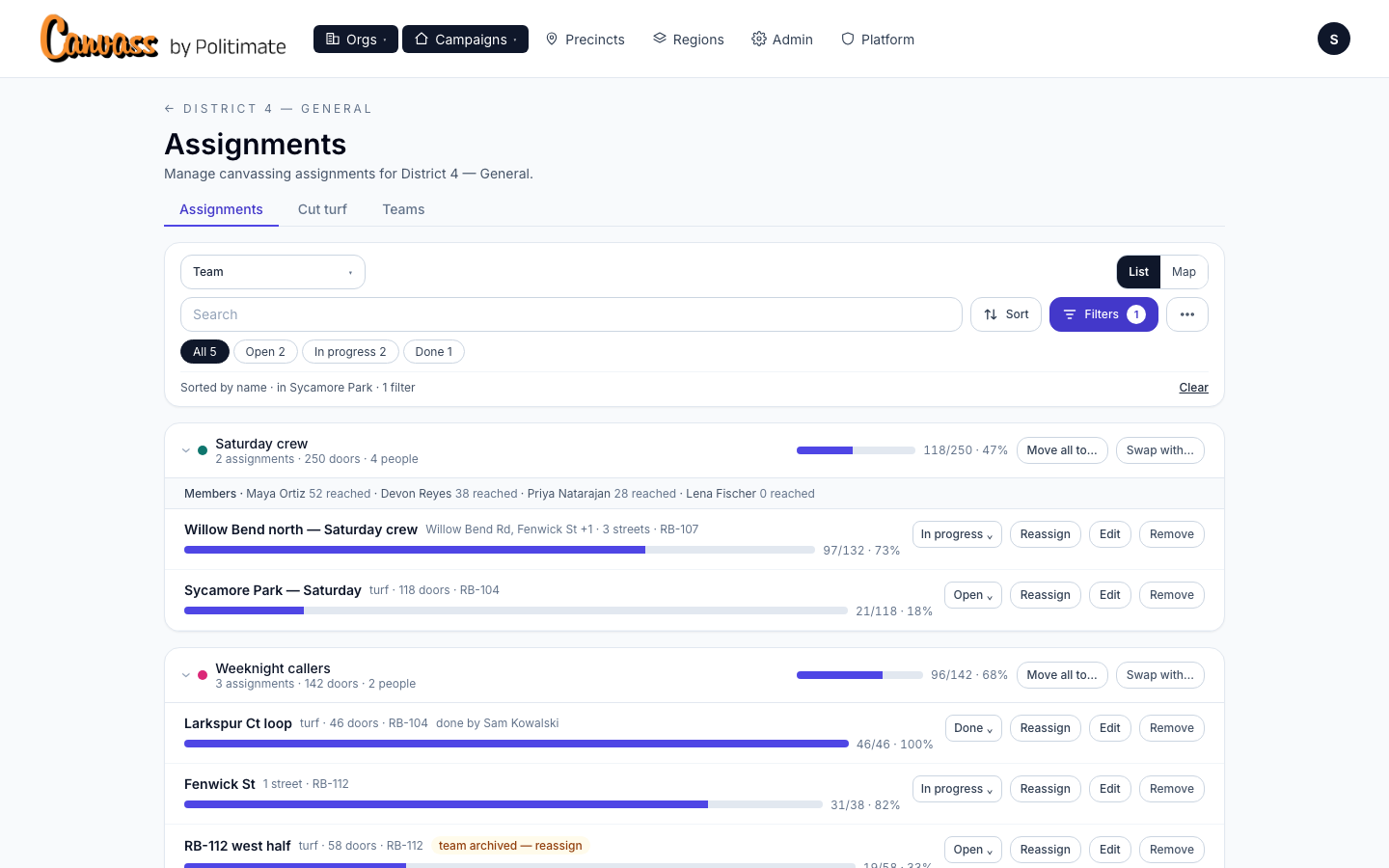
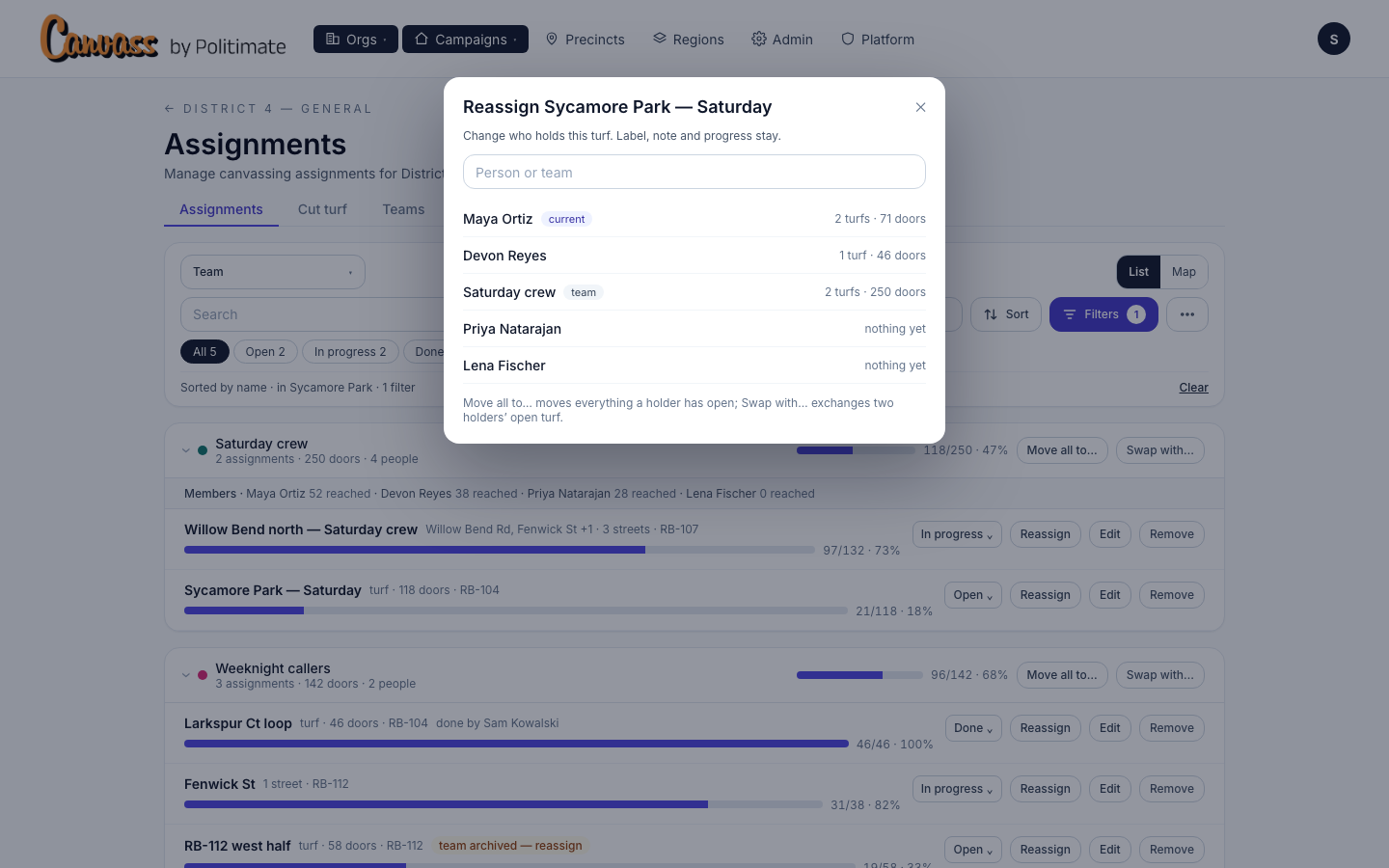
Every row has Reassign: hand this turf to someone else, and the label, the note and the progress stay. One sheet lists people and teams with what they already hold; click the new holder and it is done. On a group's header, Move all to… hands over everything that person has open, and Swap with… trades two people's turf. Edit reopens a turf in the builder with its doors selected. Remove asks you to confirm; removed turf keeps its doors and its recorded contacts, and Show removed turf under the three dots brings it back struck through, each row with a Restore button. The three dots also hold the email switch for the campaign and Send now.
7. Fix it later: areas
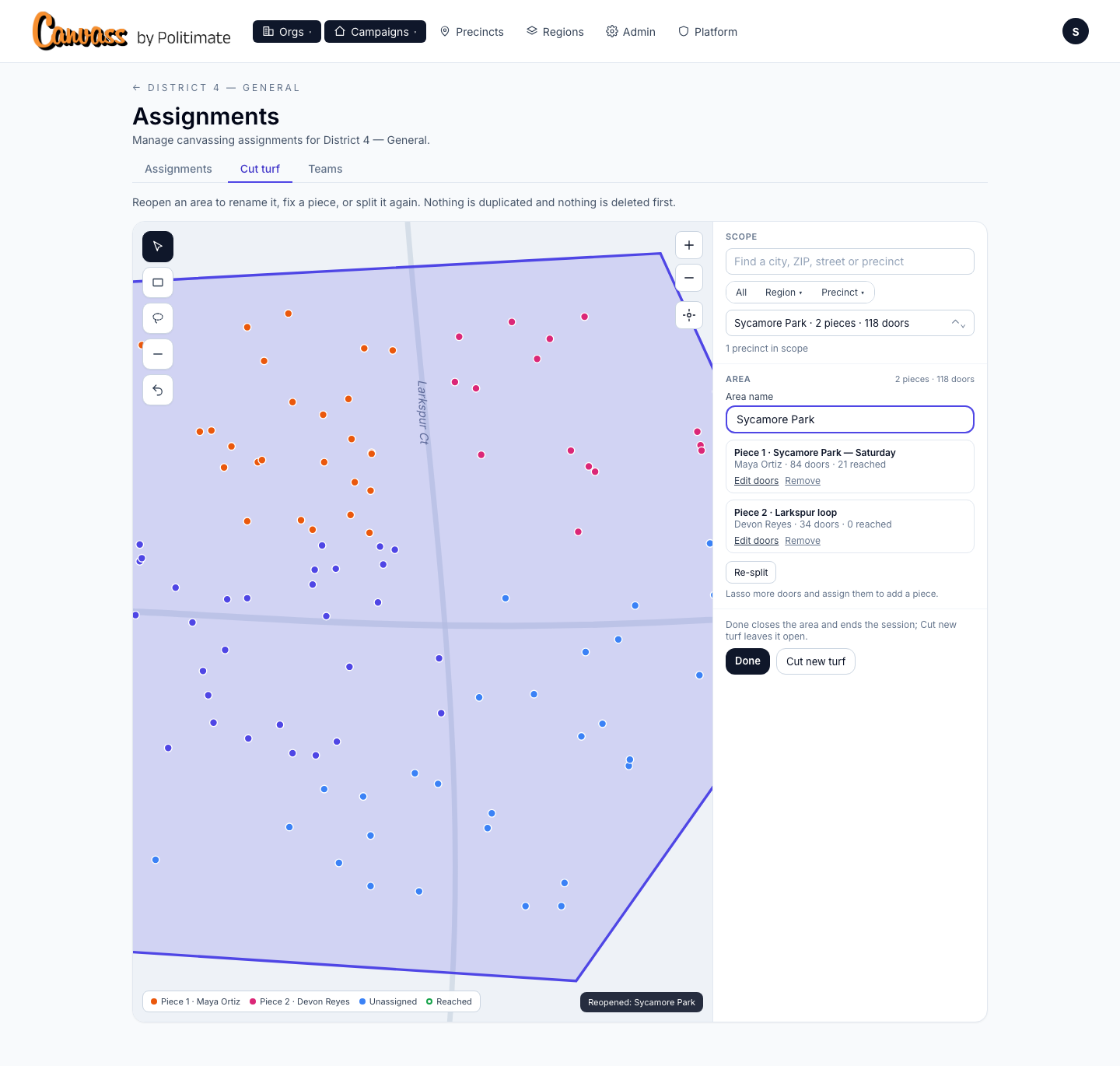
Sometimes a cut needs fixing after the fact. Group by Area and every area lists its pieces and who holds each one. Click Reopen on the area and you are back in the builder with it open: rename it; use Edit doors on a piece to add or subtract doors or change who holds it; Remove a piece to send its doors back to unassigned; Re-split to select every door of the area and cut it again, replacing the current pieces. Done closes the area and ends the session; Cut new turf leaves it open and starts the next cut.
Turf that never had an area? Tick the rows and click Group into a new area.
8. From a precinct page
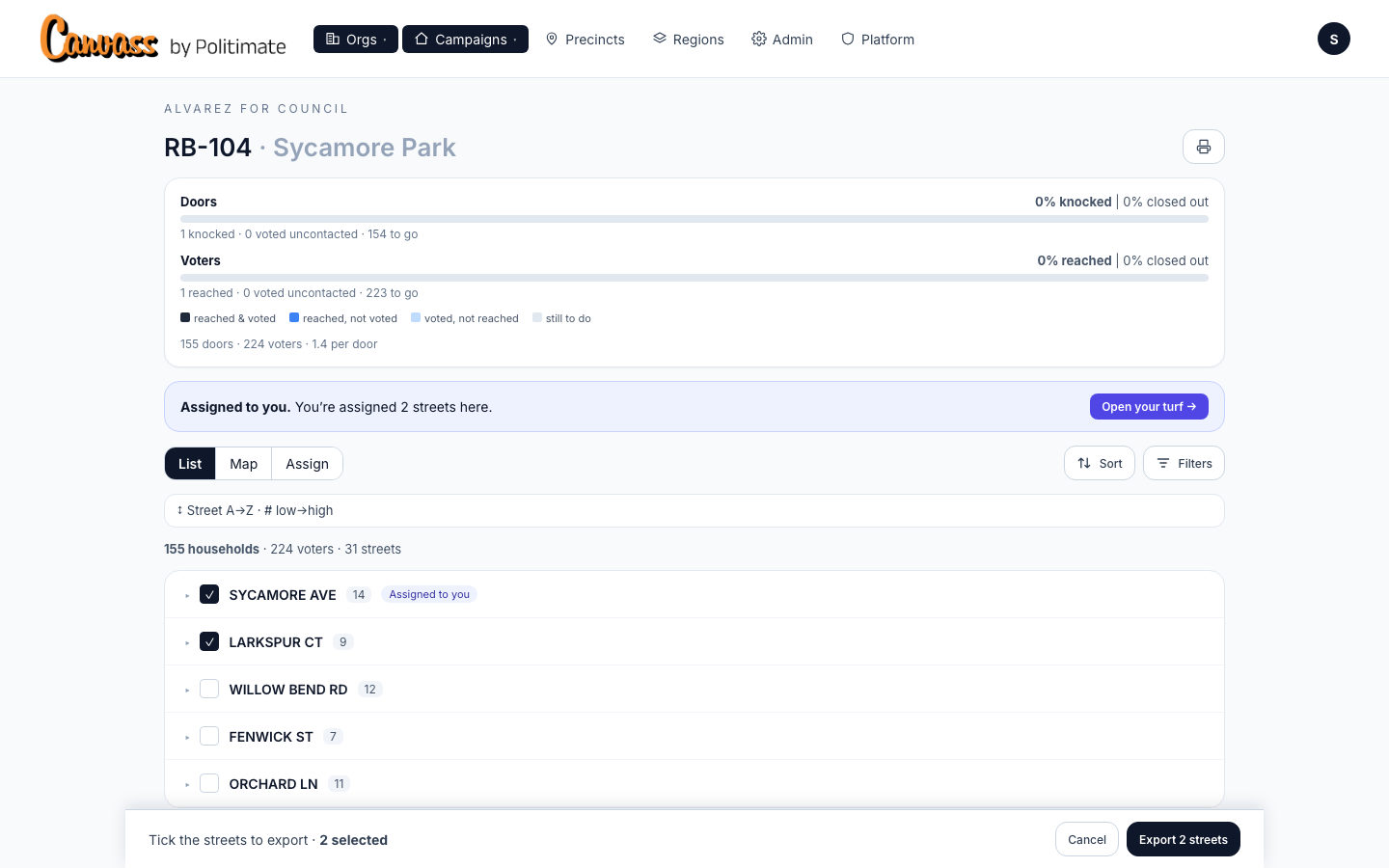
You do not have to start from the map. Open any precinct and click its Assign tab: the same builder, already pointed at this precinct. Tick a street and the panel comes up from the bottom with the totals and the assign form. The printer icon is yours as a manager: choose Selected streets, tick the ones you want, and click Export.
9. What a canvasser sees
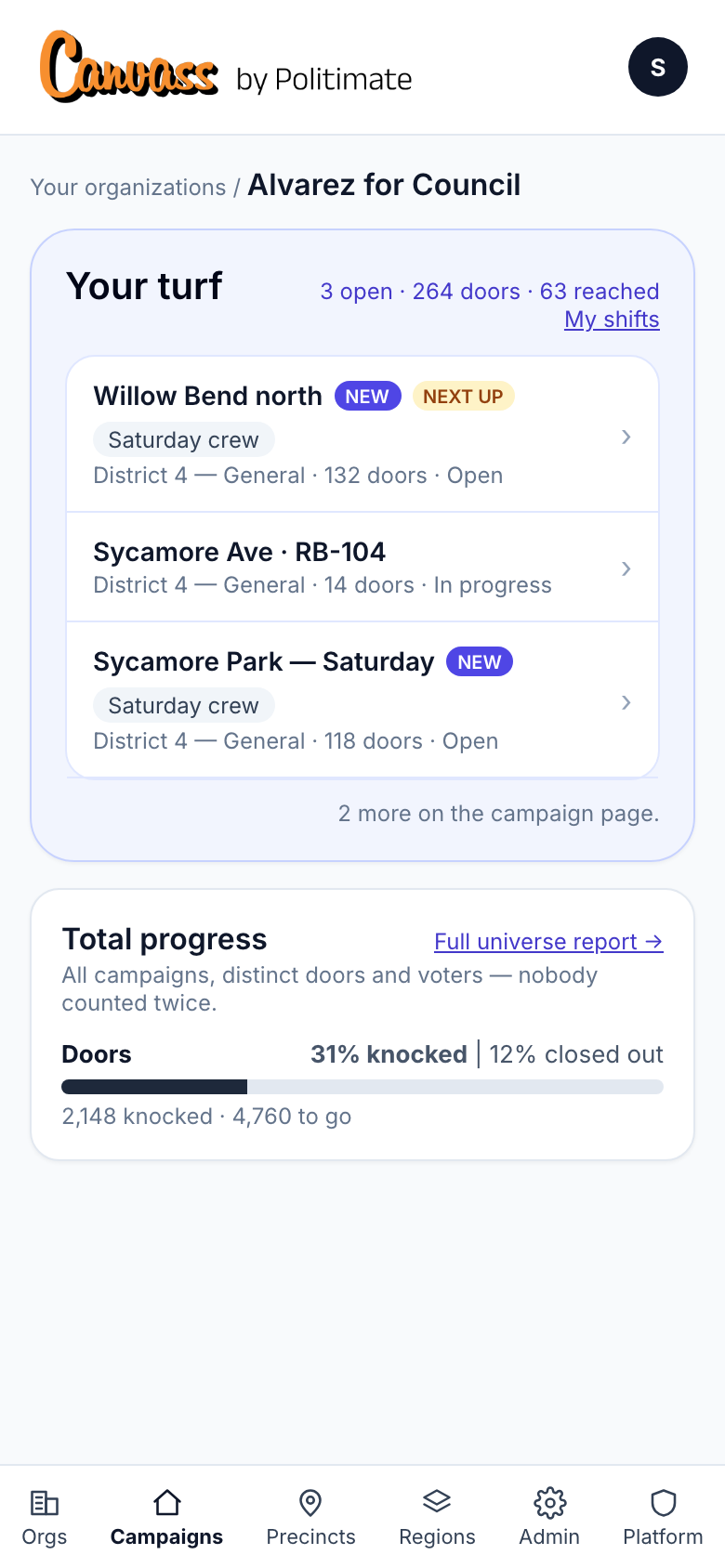
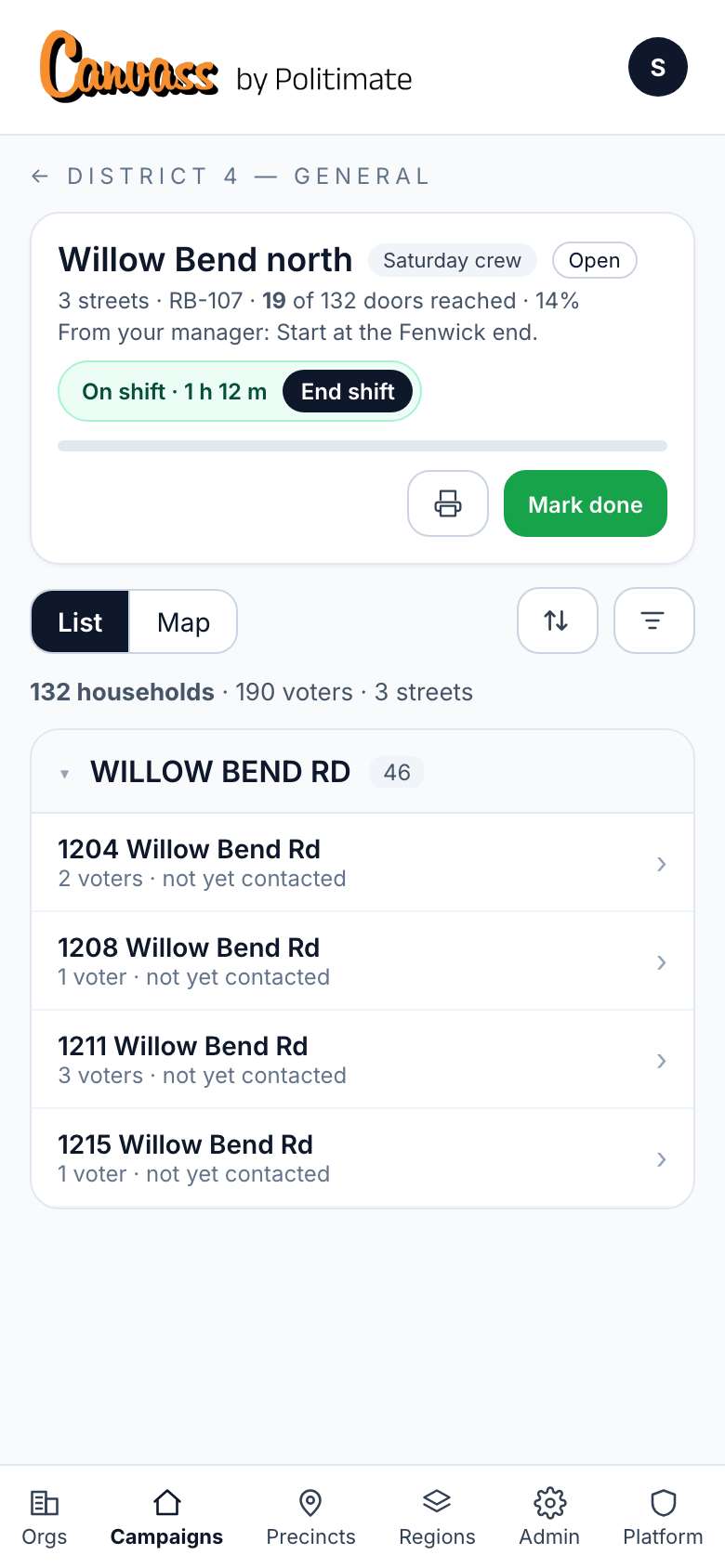
Now the other side. A canvasser signs in on their phone and their turf is the first card on the page: new until they have opened it, the crew's name on a team turf, Next up on the closest one. Tap it and they are walking: just those doors, in order, with the same cards and logging as always. The printer there prints this turf and nothing else. When they are finished they tap Mark done; on a team turf anyone on the crew can, and you see who did.
Shifts, from the canvasser's side
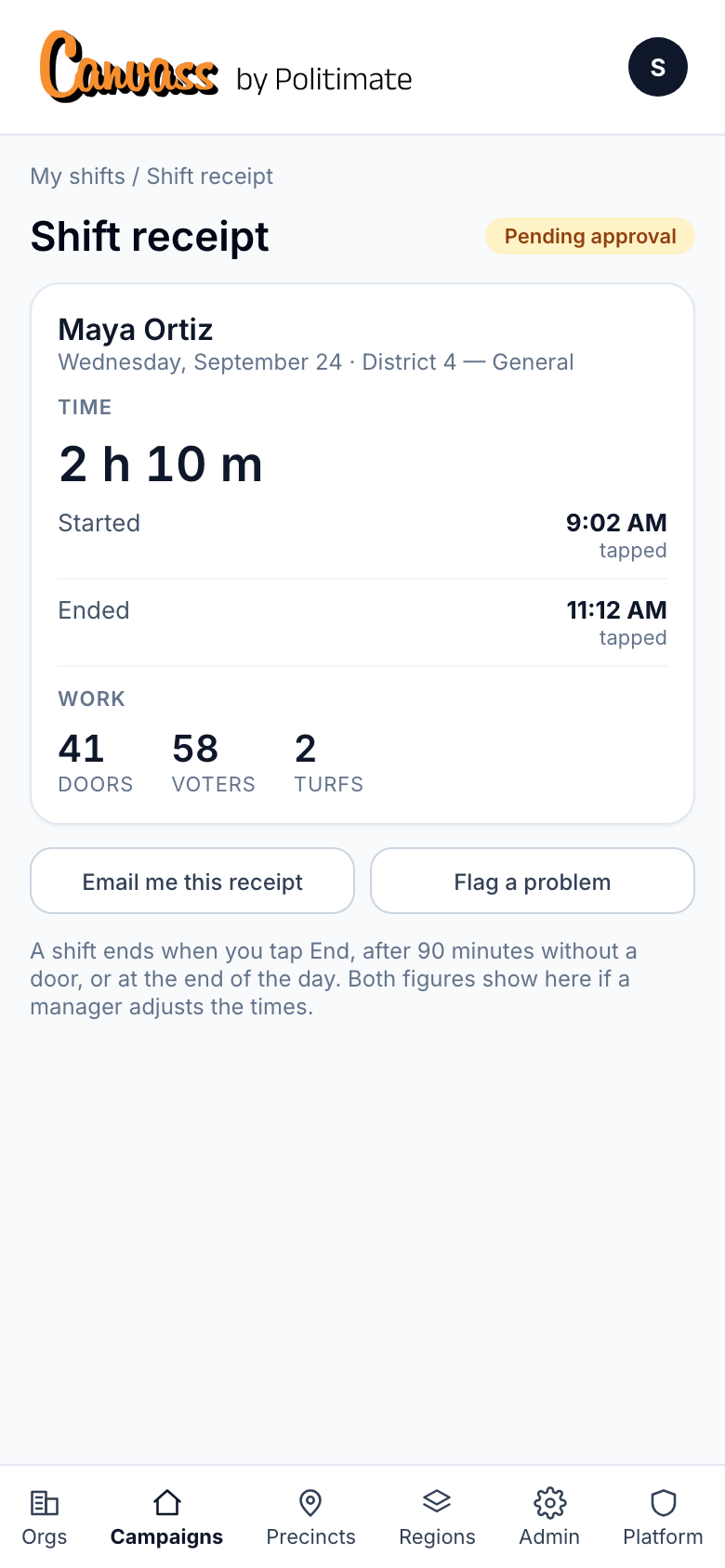
One more thing on the walk page: the shift pill. Tap Start shift before you knock; forget, and your first door starts one for you. While you are out it shows the time so far. Tap End shift and you land on your receipt: when you started, when you ended, the time in between, and the doors and turfs you worked. Something off? Flag a problem and tell your manager. My shifts, on the landing page, keeps every receipt.
10. Shifts for managers
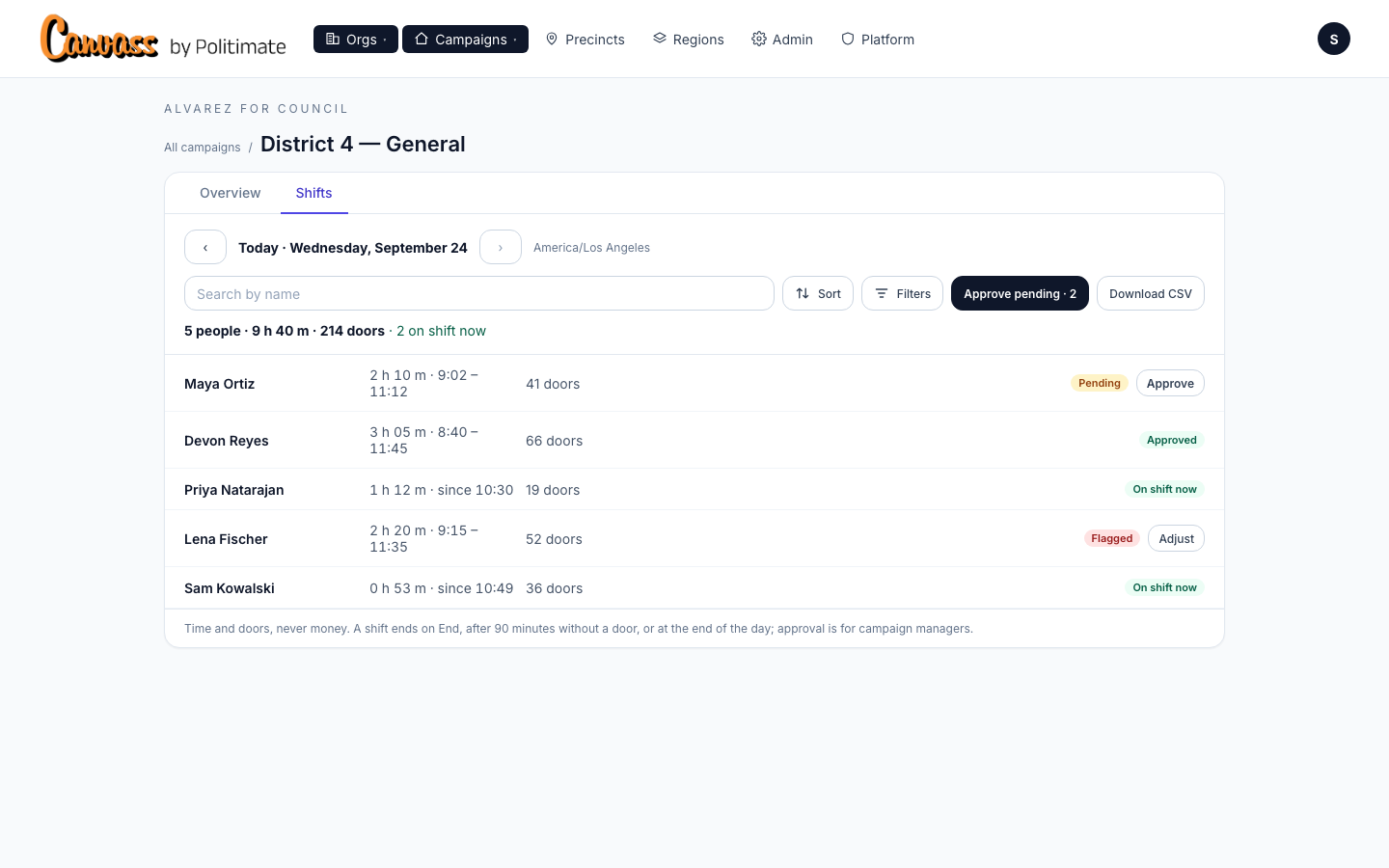
On the campaign page, click the Shifts tab on the progress card. One day at a time: who worked, for how long, how many doors, and who is on shift right now. Each shift waits for approval — click Approve on the row, or Adjust the times if a canvasser flagged a problem; both figures stay on their receipt. Approve pending takes care of the whole day at once, and Download CSV gives you hours and doors per person. Time and doors only; there is no money anywhere in the app.
Voters in, precincts drawn, campaign scoped? Cut the first turf.
Open your assignments Start free trial← Previous guide: campaigns and who they talk to · Next guide: exporting your voters →