
Guide · Getting started
Importing voters
Loading a voter file is a short sequence, and the app checks its own work at every step. This page walks it in order: pick the file, decide how much of it to load, preflight, choose what the upload should do, count, run.
Before anything else: importing only ever adds voters and refreshes the ones already there. It never deletes anybody. There is no way to break your data by trying.
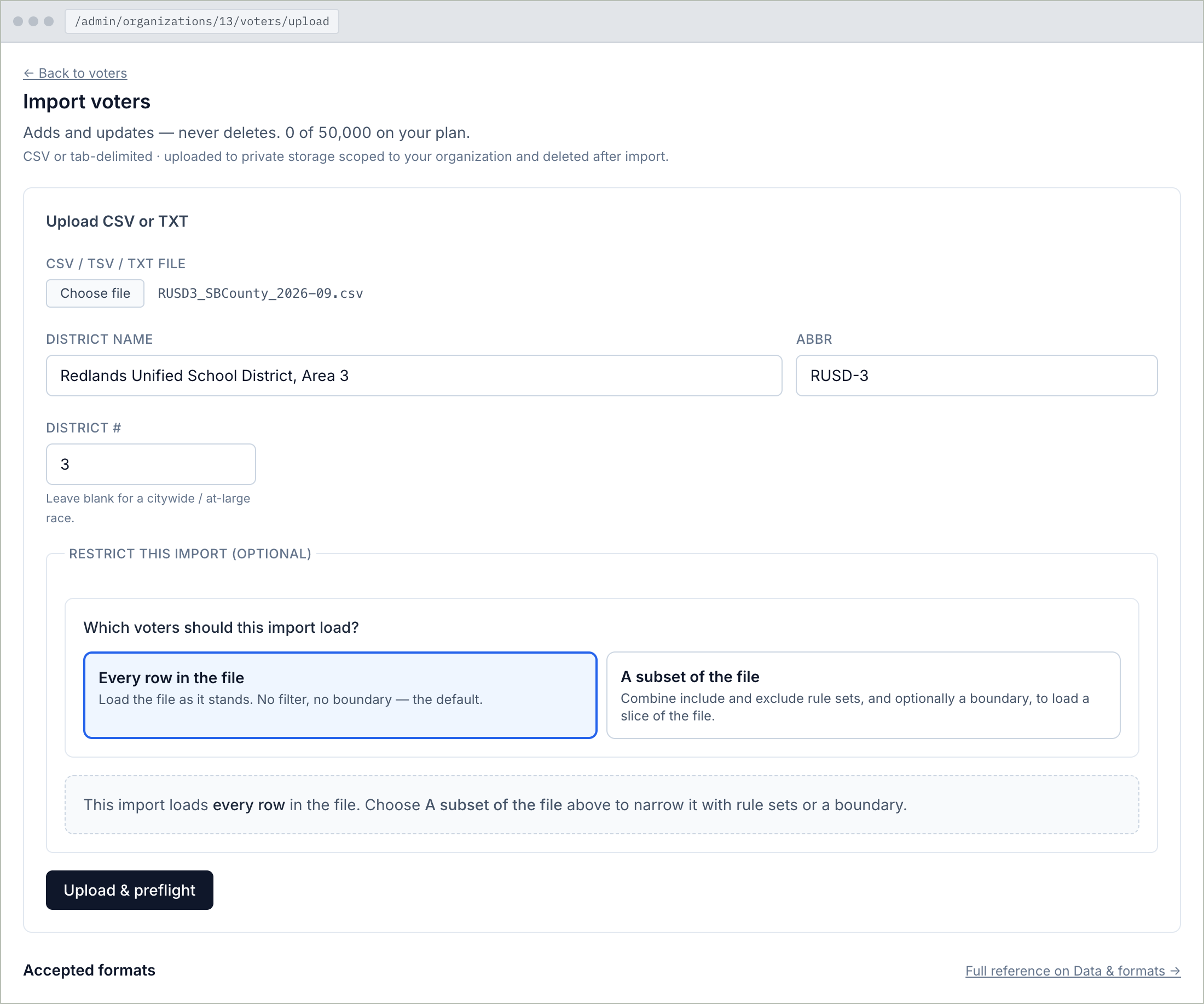
1. Pick the file and name the race
Go to Voters, then Import voters. The line under the heading tells you two things: that importing adds and updates but never deletes, and how many voters you are holding against how many your plan allows. That second number is the one that decides whether a big file will fit.
Choose your file. It goes to private storage only your organization can see, and it is deleted once the import finishes.
Then three boxes about the race. District name is the district this file covers, written the way you would say it — "Victor Elementary School District, Area 2". Abbreviation is your short version. District number is just the number, if the race has one; running citywide or at-large, leave it blank. These get stamped onto the voters the file brings in, so later you can tell at a glance which file somebody came from. Nothing is pre-filled. Type what is true for your race.
2. All of it, or a slice?
The app asks: which voters should this import load?
Every row in the file loads it as it stands. That is the default and the right answer most of the time.
A subset of the file loads a slice. Two common reasons: the county sent you the whole county and you are running in one city; or the file has thousands of people registered years ago who have never voted since, and you would rather not carry them — especially since your plan is priced on how many voters you hold.
Rule sets
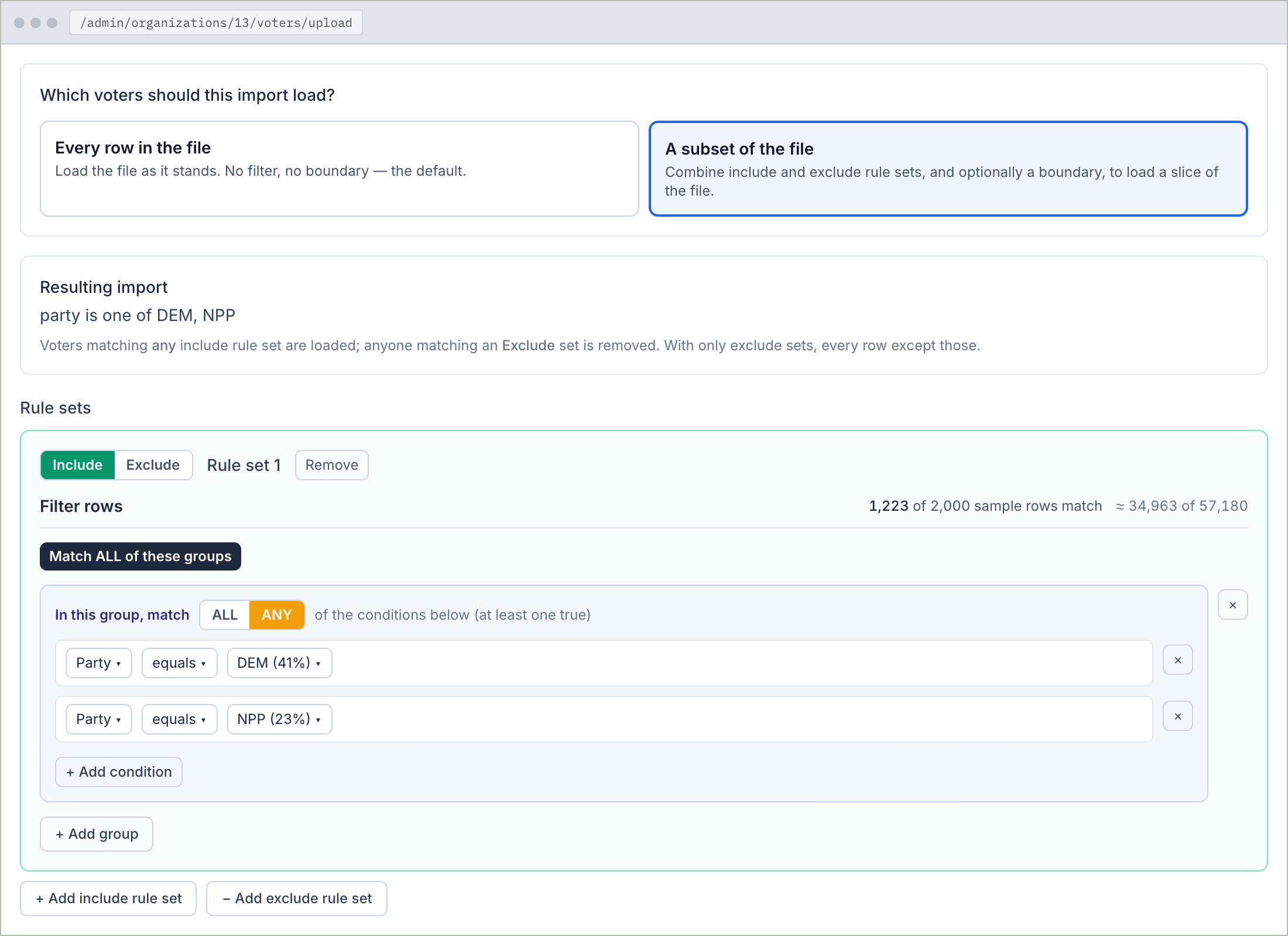
A slice is described with rule sets — one sentence each about who you want, like "party is Democrat or No Party Preference" or "city is Redlands". Each rule set is an include (anyone matching is loaded) or an exclude (anyone matching is left out). You can have several of each.
Above them, under Resulting import, the app writes out what your combination actually means, in a sentence, and shows how many rows from a sample of your real file match. Read that sentence before you run. It is the single best check against loading the wrong thing.
Leaving out people who don't vote
If your file has vote history, a banner appears with a shortcut: Exclude non-voters. One click adds the rule "voted in at least one of the last five elections".
Use the shortcut rather than building this rule yourself, because it is the one place people get burned. The obvious-looking approach is to filter the raw election columns with "not equal to N", where N means didn't vote. It looks right and it is wrong: for many people that column isn't the letter N, it is simply blank, because the county has no record for that election. "Not equal to N" counts every blank as a pass, and the non-voters you meant to leave out sail straight through. That exact mistake once loaded thirty-two thousand never-voters nobody wanted. The shortcut counts blanks as zero, which is what you meant.
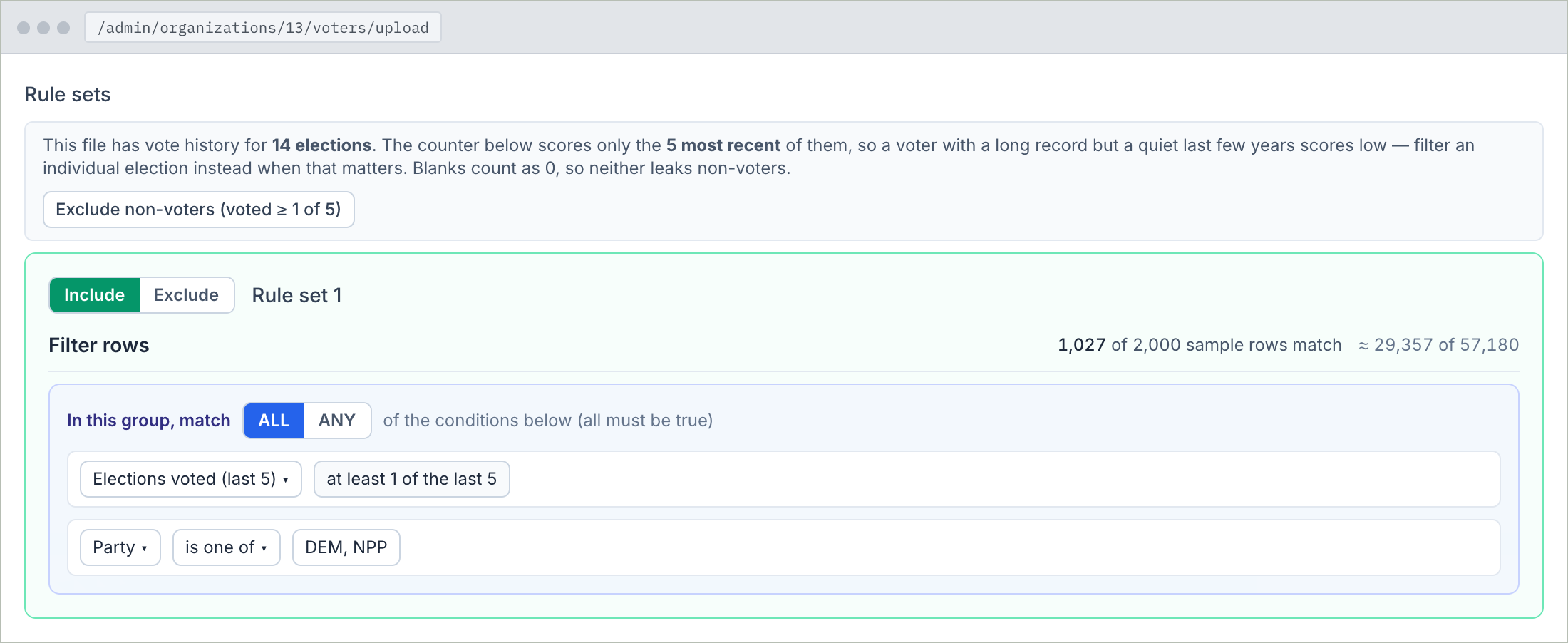
One honest limit the banner tells you too: the counter scores only the most recent five elections. Someone with a long record who has been quiet lately will score low. If a specific election matters — your last school bond, say — filter on that election directly instead.
Narrowing by area
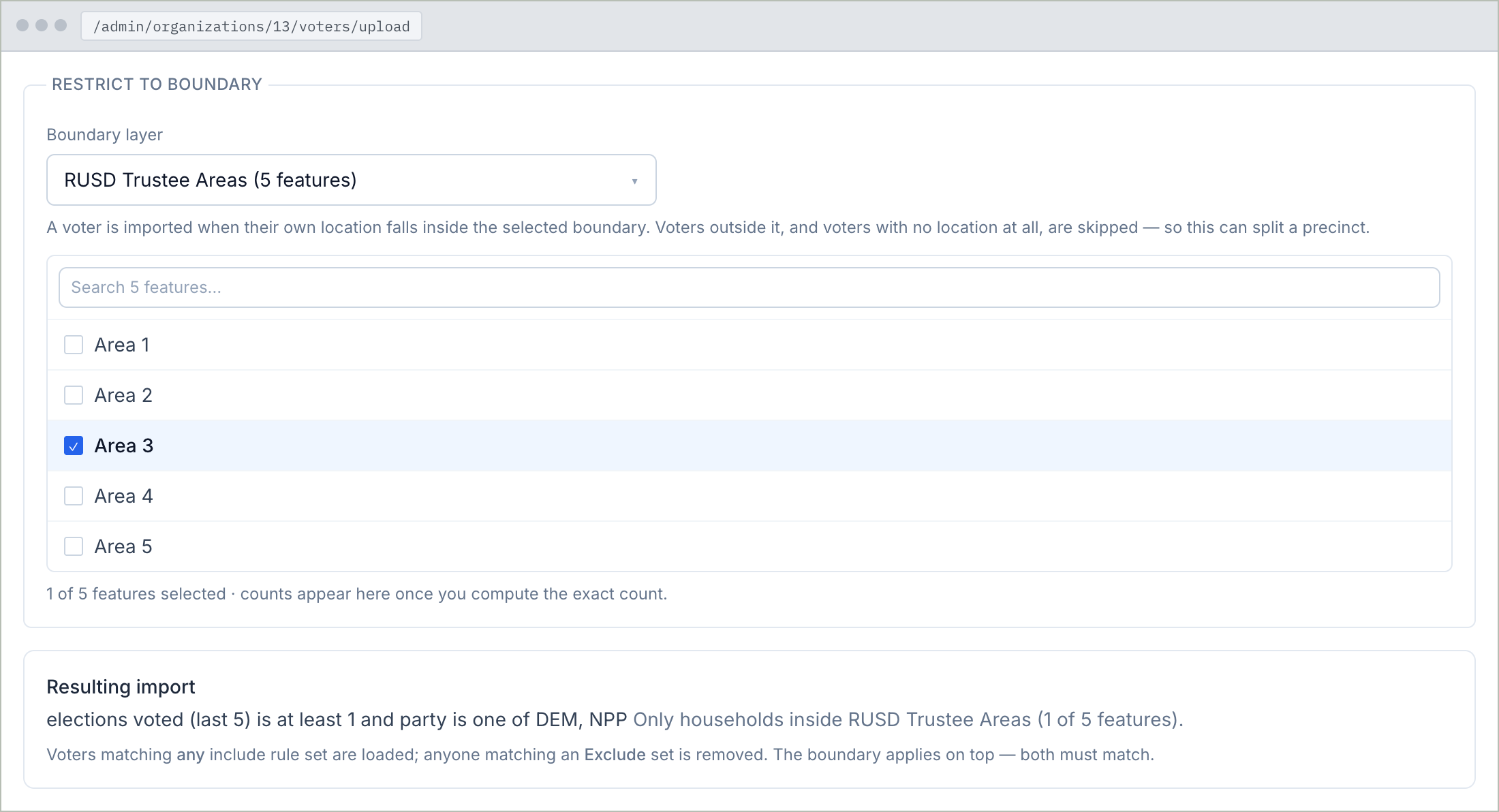
You can also restrict an import to a boundary you have uploaded — city limits, council districts — and optionally just some pieces of it. A boundary and a rule set stack: both have to be true.
Two things to know first. The area test uses each voter's own position on the map, so a voter the app could not place is skipped along with the ones genuinely outside. And if your file has no coordinates, the app has to work out everybody's position before it can test the boundary — that is the slow part of an import. When you can, narrow by city, ZIP or county in a rule set instead: those come straight out of the file, need no map lookup, and get you to the same place much faster.
3. Upload and preflight
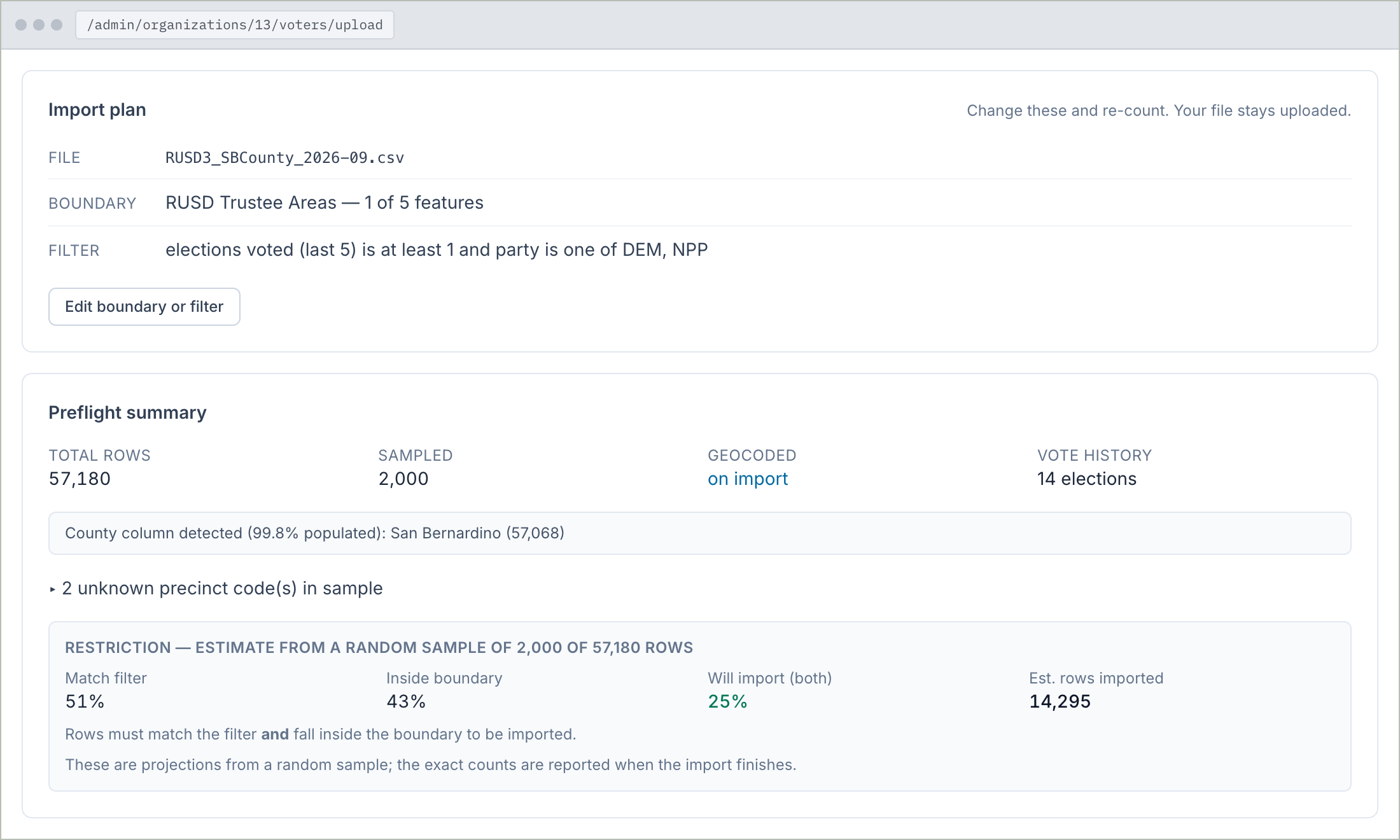
Press Upload & preflight. "Preflight" means the app reads a sample of your file and reports back before anything is committed: how many rows there are, how many it sampled, whether they already have map coordinates or will get them during the import, any precinct codes it does not recognize — and, if your file has no county column, which county to use for the addresses.
If you narrowed the import, you also get a block showing what share of the sample matched your rules, what share fell inside your boundary, and what share survives both. These are projections from a sample, and the app says so.
Above all that is your import plan — your file, your boundary, your filter, in plain words. Not what you meant? Edit boundary or filter right there. The file stays uploaded; nothing is sent twice.
4. What should this upload do?
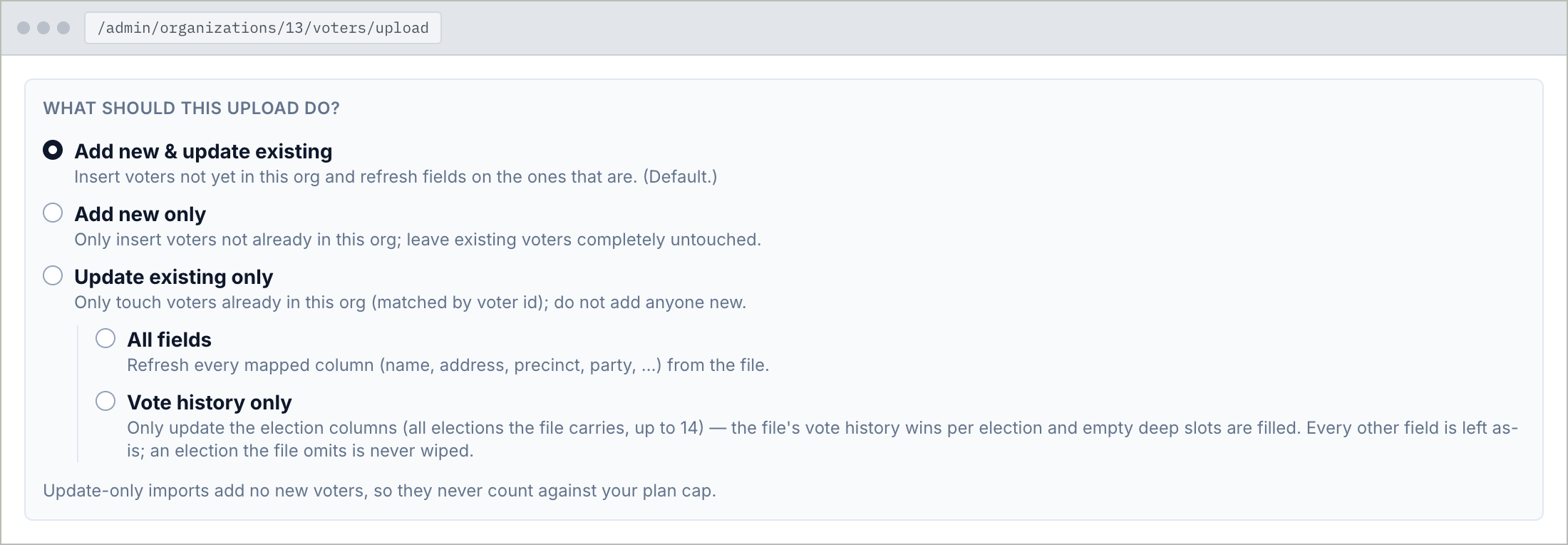
Three choices about voters you already have:
- Add new & update existing — the default, and what you want almost always. New people are added; people already there get their details refreshed from the file.
- Add new only — adds newcomers and does not touch anybody already in the system. Use it when you have cleaned up records by hand and do not want the county's version overwriting your work.
- Update existing only — refreshes people you already have and adds nobody new. The usual reason is a vote-history refresh after an election: choose Vote history only underneath, and it updates just the election columns, leaving every other field alone. Since it adds nobody, it can never push you over your plan.
5. The exact count
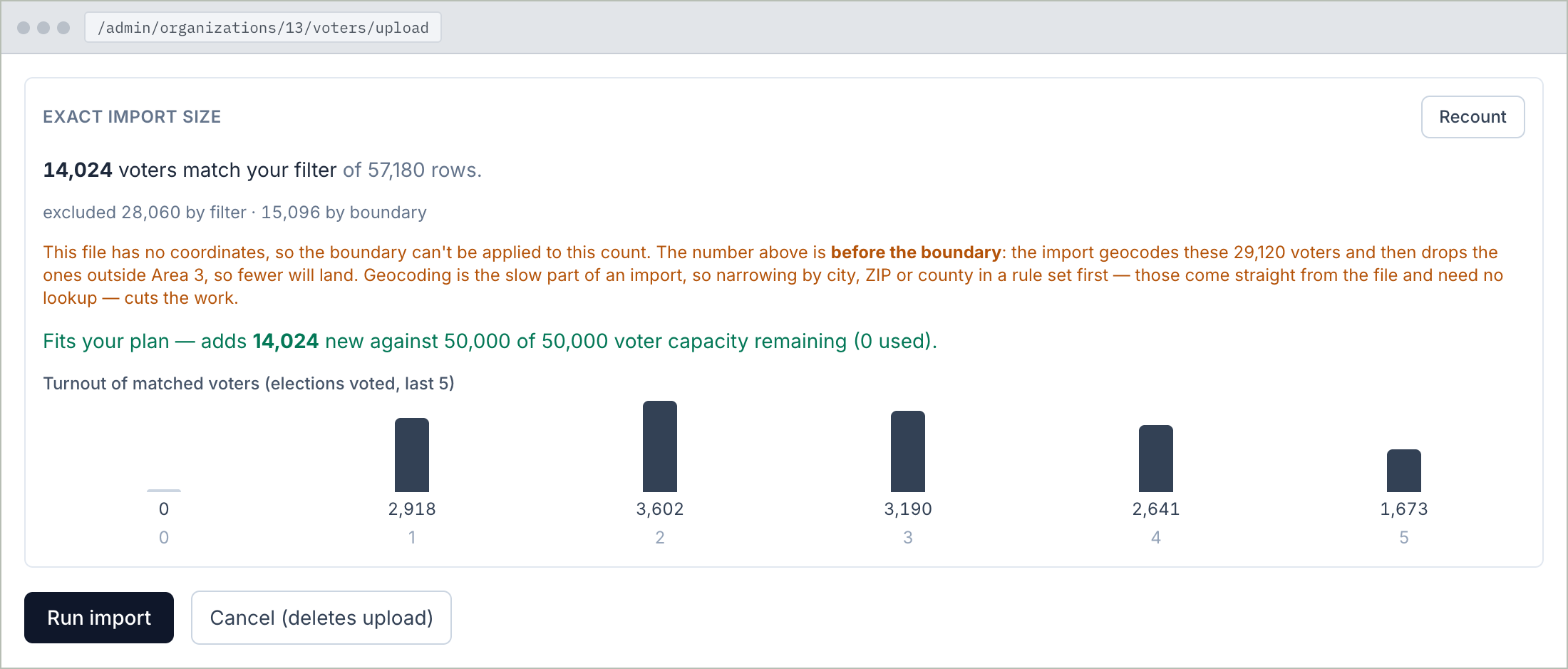
Before you commit, press Compute exact count. Everything so far came from a sample; this reads your whole file and gives you the real answer: exactly how many voters match, how many were excluded and by which rule, and — the important one — how many of these are new versus already in your system.
New voters are what count against your plan. The app says straight out whether the import fits — "adds this many new against this much capacity remaining" — and if it does not, by how much, with a button straight back to the filter to narrow it.
You also get a small chart of the turnout of who is about to come in: how many voted in none of the last five elections, one, two, and so on. If the left-hand bar is enormous, you may want that non-voter filter after all.
6. Run it
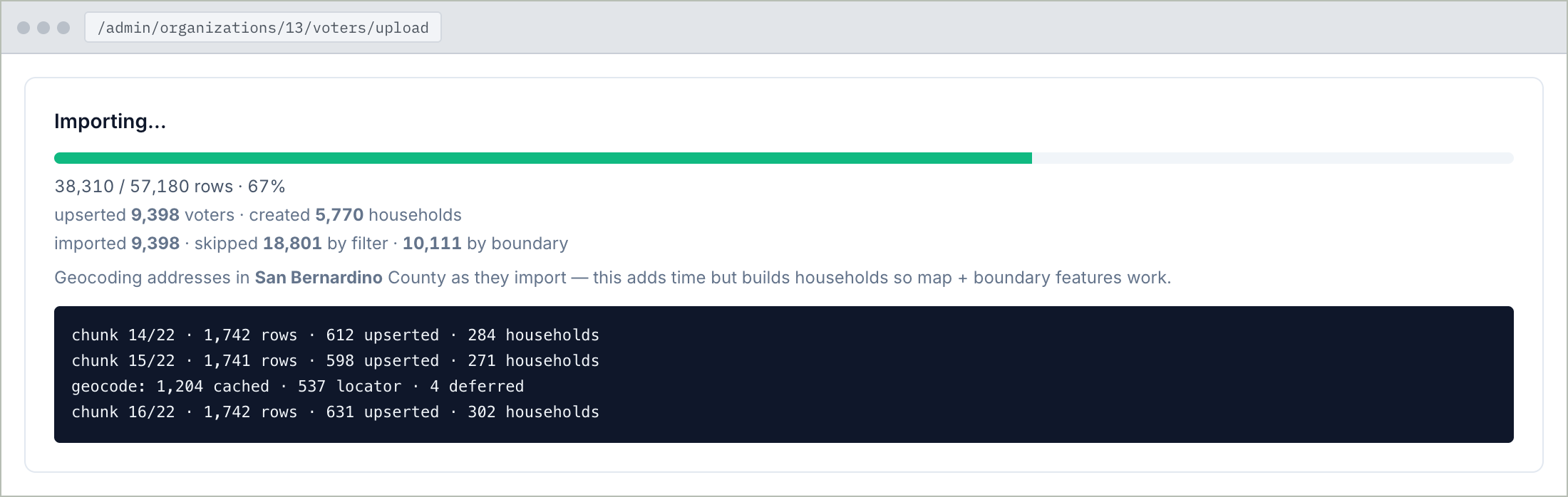
Press Run import. Big files take a while; the slow part is working out where everybody lives on the map. You will see live progress — rows read, rows loaded, rows skipped and why. If your connection drops while the import is running, it resumes where it left off rather than starting over.
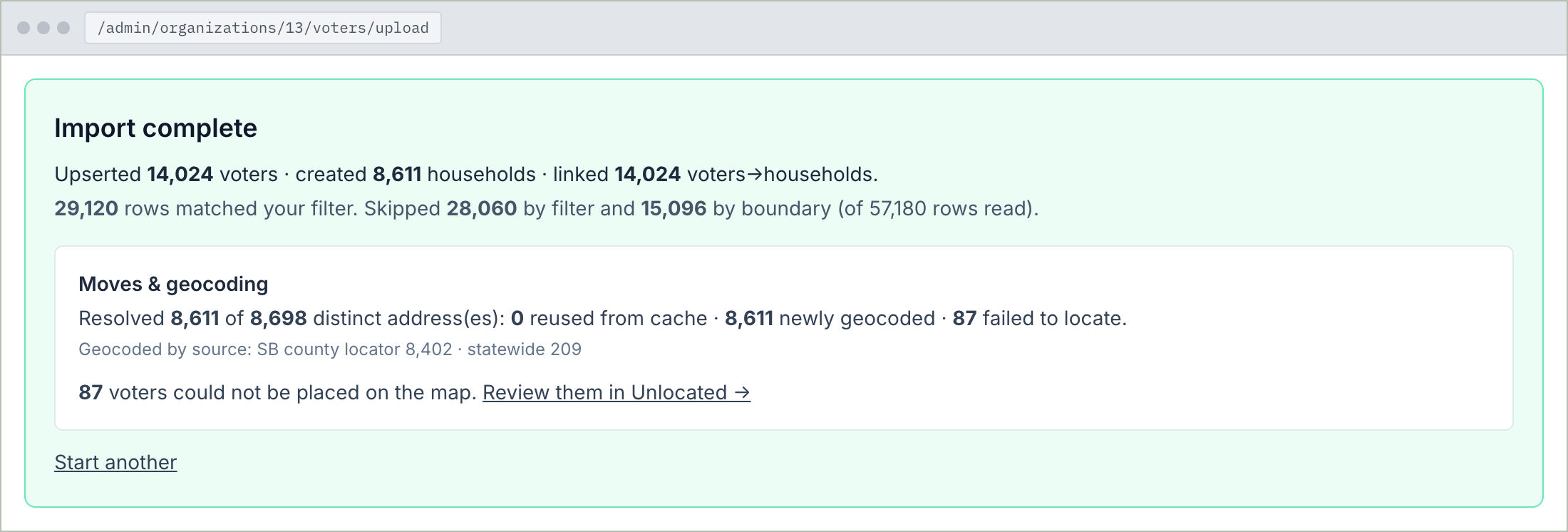
When it finishes you get the report: how many voters were added, how many updated, how many could not be placed on the map. Those last ones are listed under Unlocated, and you can fix their addresses there whenever you like. Nothing is thrown away.
Got your file? The app checks it before anything is committed, and tells you exactly what it found.
Open your import screen Start free trial← Previous guide: which voter file do I have? · Next guide: precincts, the map your campaign runs on →